
How to purchase a module on PrestaHero?
Thanks for visiting our website! Follow our step-by-step guide to purchase and install the perfect module for your online store.
1. Check the module details
Before making a purchase, you can quickly check the module information such as features, demo and description, to ensure it fits your needs.
If there is anything you are not sure about, feel free to contact our support team. We will gladly explain further or help you confirm whether the module is suitable for your requirements.
2. Add to cart
Once you’ve chosen the module, click Add to cart to include it in your order.
3. Proceed to checkout
Before purchasing, check the item(s) in your shopping cart to ensure everything is correct. Click "Proceed to checkout" to continue.
4. Account & address information
At checkout, you need to:
- Log in to your existing account, create a new one, or sign in using a social account
- Add your billing address
Please make sure your address information is accurate, as it will be used for your invoice and accounting purposes.
5. Choose a payment method
We currently support 2 payment methods:
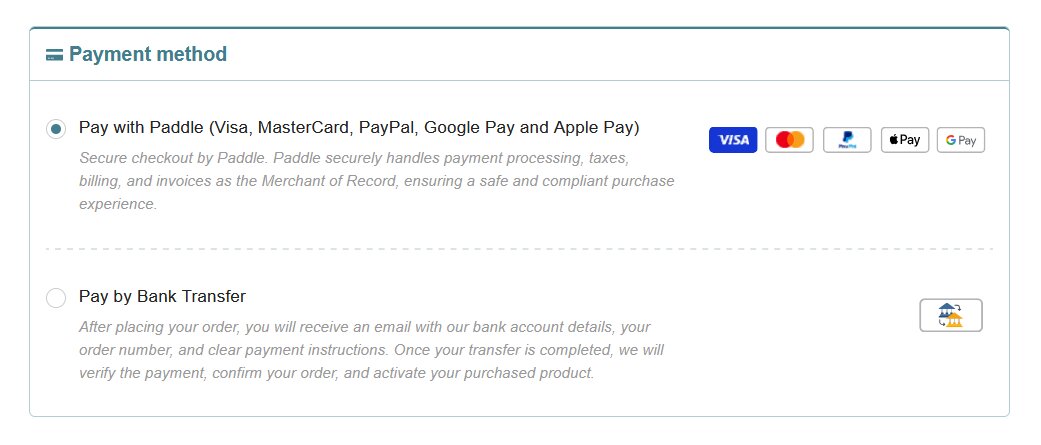
5.1. Pay with Paddle
Paddle is a secure payment provider that acts as the Merchant of Record (MoR). It handles payment processing, billing, taxes and invoice generation, ensuring safe, secure and legally compliant transactions.
When you choose Paddle, it will:
- Handle the entire payment process securely
- Calculate applicable taxes based on your country
- Issue the official invoice to you
You can pay via Paddle using:
- Credit / Debit card (Visa / Mastercard / American Express (AmEx) / JCB / UnionPay / Discover / Diners Club)
- PayPal (through Paddle)
- Apple Pay / Google Pay
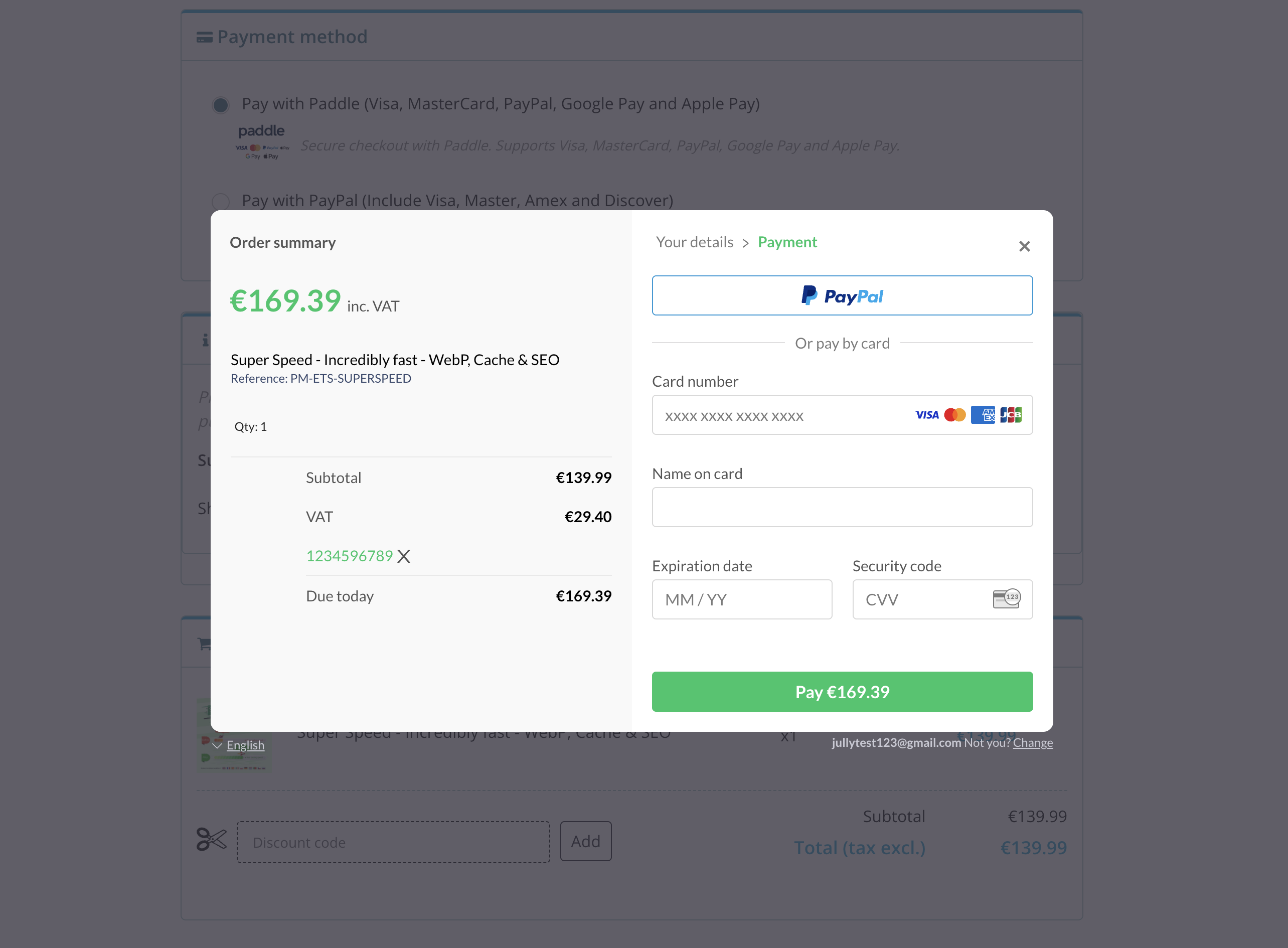
This provides a safe, compliant, and seamless checkout experience.
5.2. Pay by Bank wire
If you choose bank transfer, it usually takes 3–5 business days for the payment to reach our bank account
After completing the transfer, you can take a screenshot or keep the transaction confirmation. Then contact our support team and send us the proof of payment.
Once we verify that the payment information is correct, we can activate your license in advance so you can start using the module immediately.
Your license will receive full technical support once the payment is officially received in our bank account.
6. Order confirmation & invoice
After completing your order, the system will automatically process your purchase and send you the necessary information via email.
6.1. Order confirmation
Once your order is successfully placed, you will receive an order confirmation email with full details of your purchase:
- For payments via Paddle / PayPal, the confirmation email is sent shortly after the transaction is completed.
- For payments via Bank wire, the order will be confirmed after you place it, and the payment will be verified separately.
6.2. Invoice
Your invoice will be issued depending on the payment method:
- Pay with Paddle: Paddle will automatically generate and send the official invoice to your email. The invoice includes all required legal and tax information based on your country.
- Pay with PayPal: The invoice will be issued and sent to your email by PrestaHero after your payment is completed.
- Pay by Bank wire: The invoice will be issued and sent to your email by PrestaHero after we receive and confirm your payment.
Please ensure your billing address is correct during checkout, as this information will be used for your invoice and accounting purposes.
7. Access your purchased module
After payment is confirmed, you can access and install your module in the following ways:
Option 1: Install via PrestaHero Connect (recommended)
You can install the module directly using PrestaHero Connect for a faster and more convenient setup.
Just install our free PrestaHero Connect module in your back office, log in with your PrestaHero account, then go to the “Purchased” tab, find the module you’ve purchased, and click “Install from PrestaHero” to start the installation.
For step-by-step instructions, please read this guide: How to install and use PrestaHero Connect.
Option 2: Download & Install manually
You can also download the module file and install it manually:
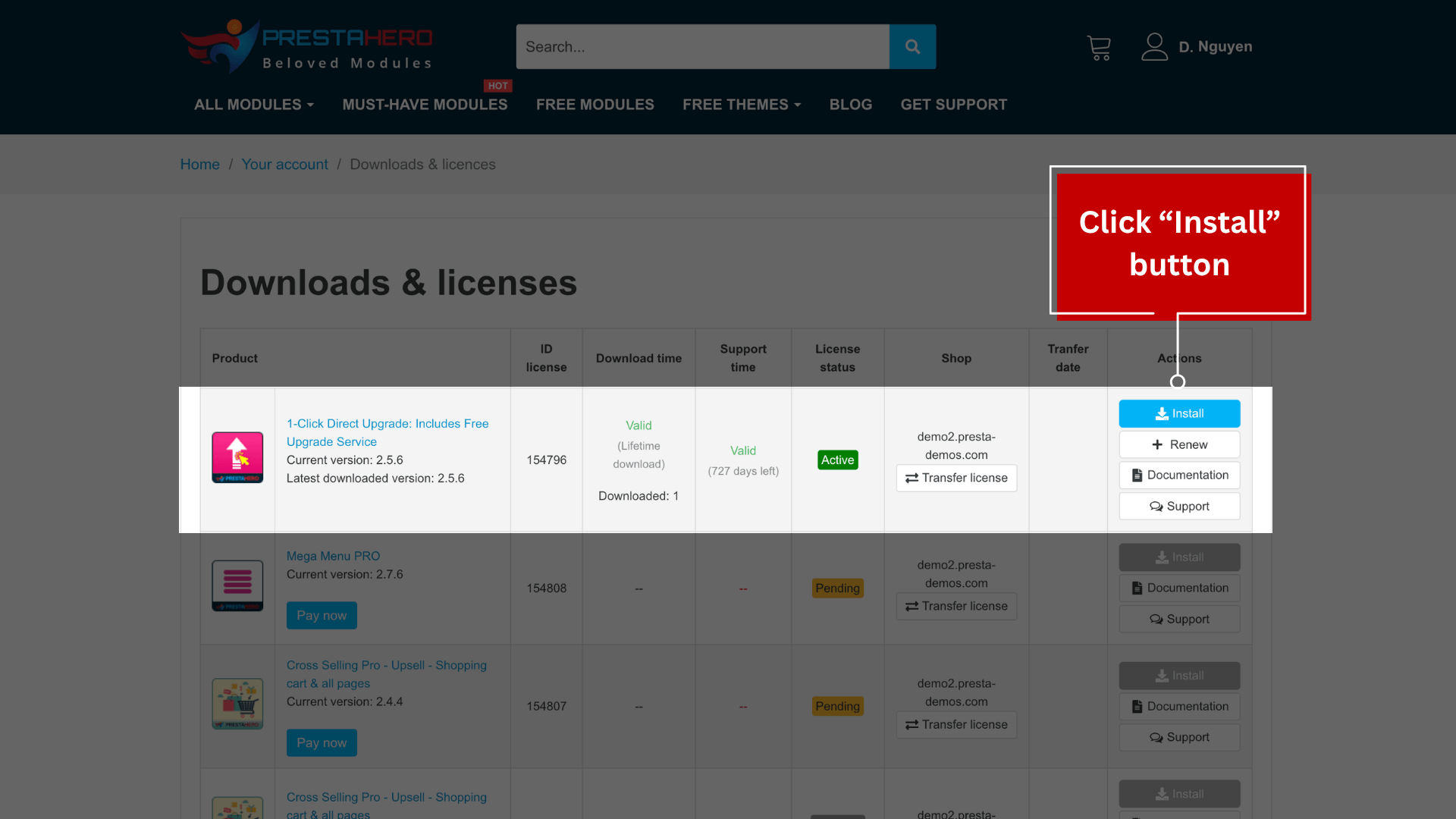
- Go to “My Account > Downloads & Licenses”
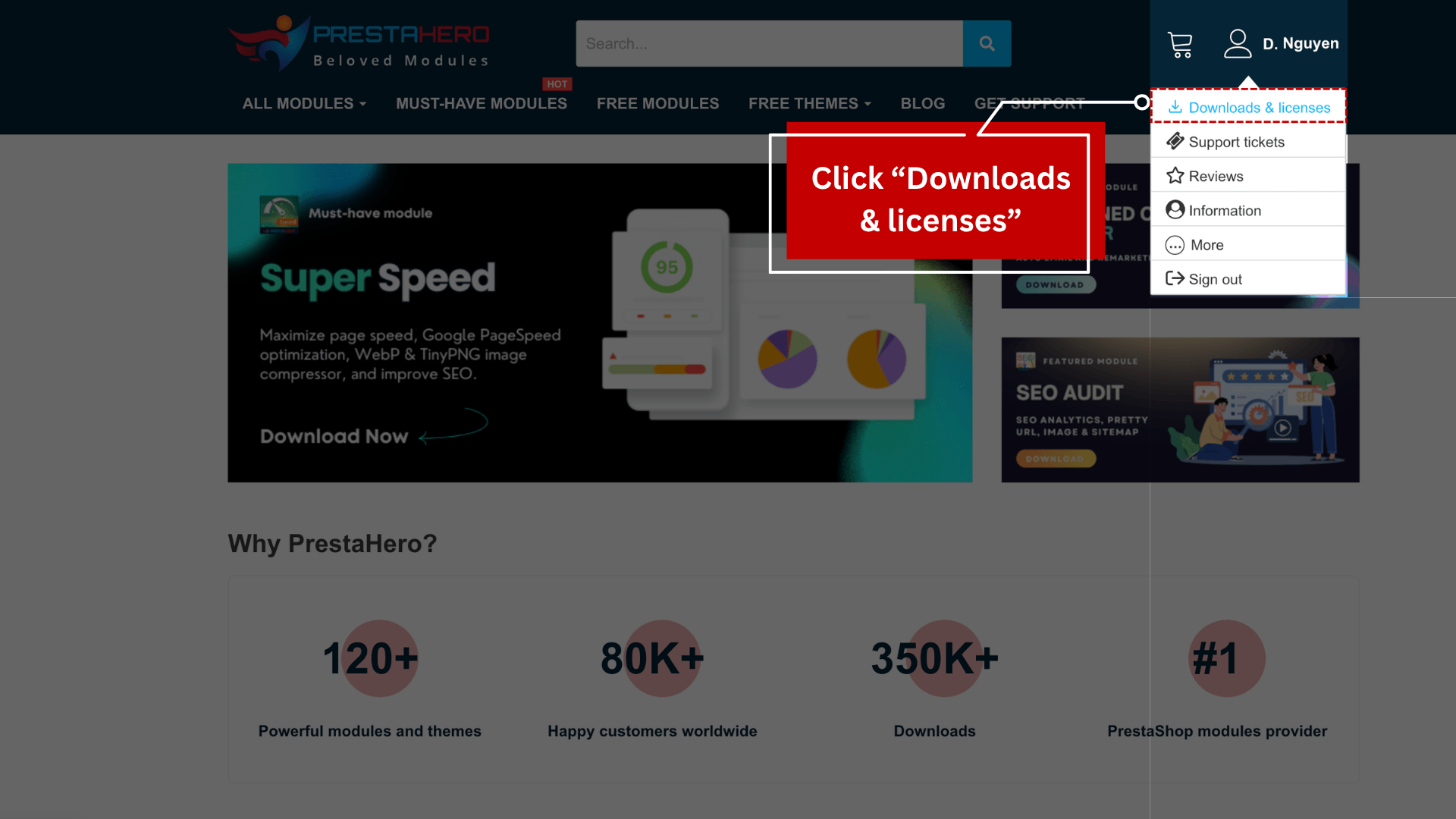
- You will see a list of the modules you have purchased. Find the module you want to install and click the “Install” button (as shown in the screenshot below).
- After clicking "Install", click the "Click here" link to download the module file (.zip).
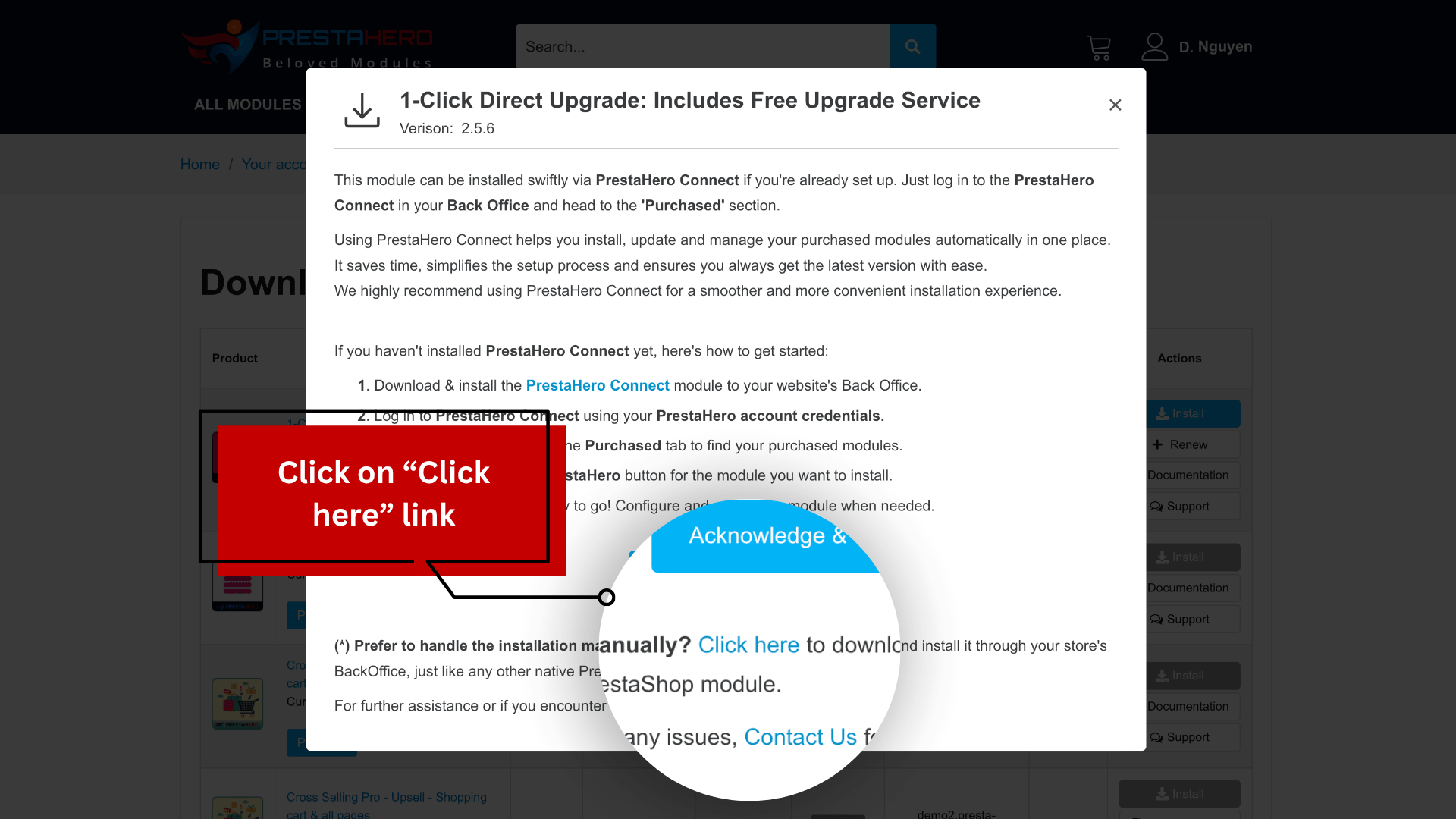
- Upload the downloaded file to your PrestaShop back office to install.
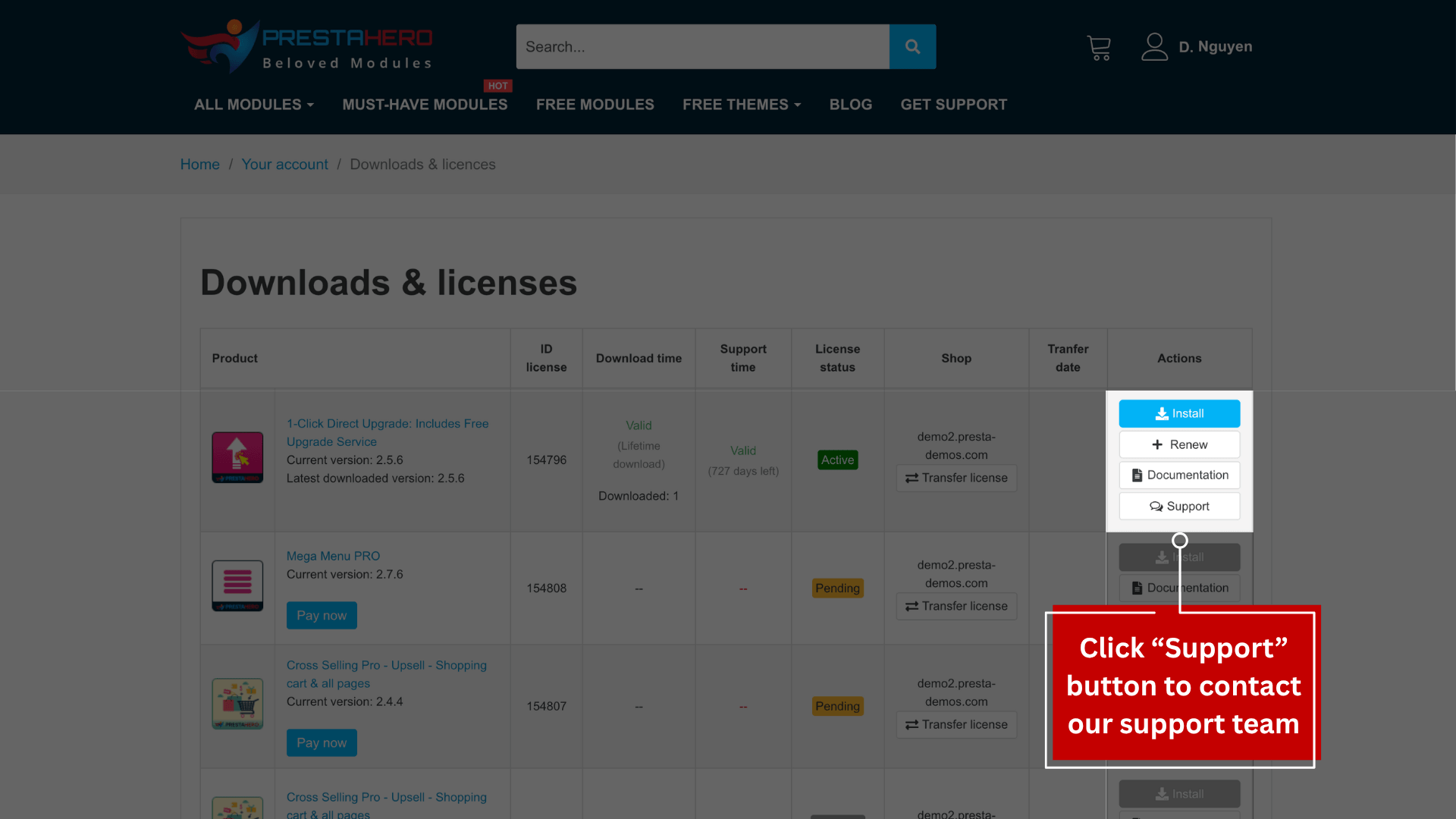
If you need any assistance with installing or using a specific module, click the “Support” button next to the module to reach out to our support team. We’re always happy to assist you!