

Technical SEO Checklist for PrestaShop
Your PrestaShop store may look perfectly fine to customers while search engines encounter technical problems behind the scenes. Blocked pages, incorrect indexing settings, broken URLs, or conflicting canonical tags can all affect how Google discovers and indexes your content.
This checklist helps you identify these issues by checking what your store actually outputs, not just what its settings say.
You don't need to be a developer to perform most of these checks. We'll show you where to look, what to watch out for, and which tools can help.
Technical SEO Quick Checklist
The checklist below gives you a quick overview of the key technical SEO areas to review on your PrestaShop store.
Feel free to download the image and save it for later, or share it with your team to work through the checks together.
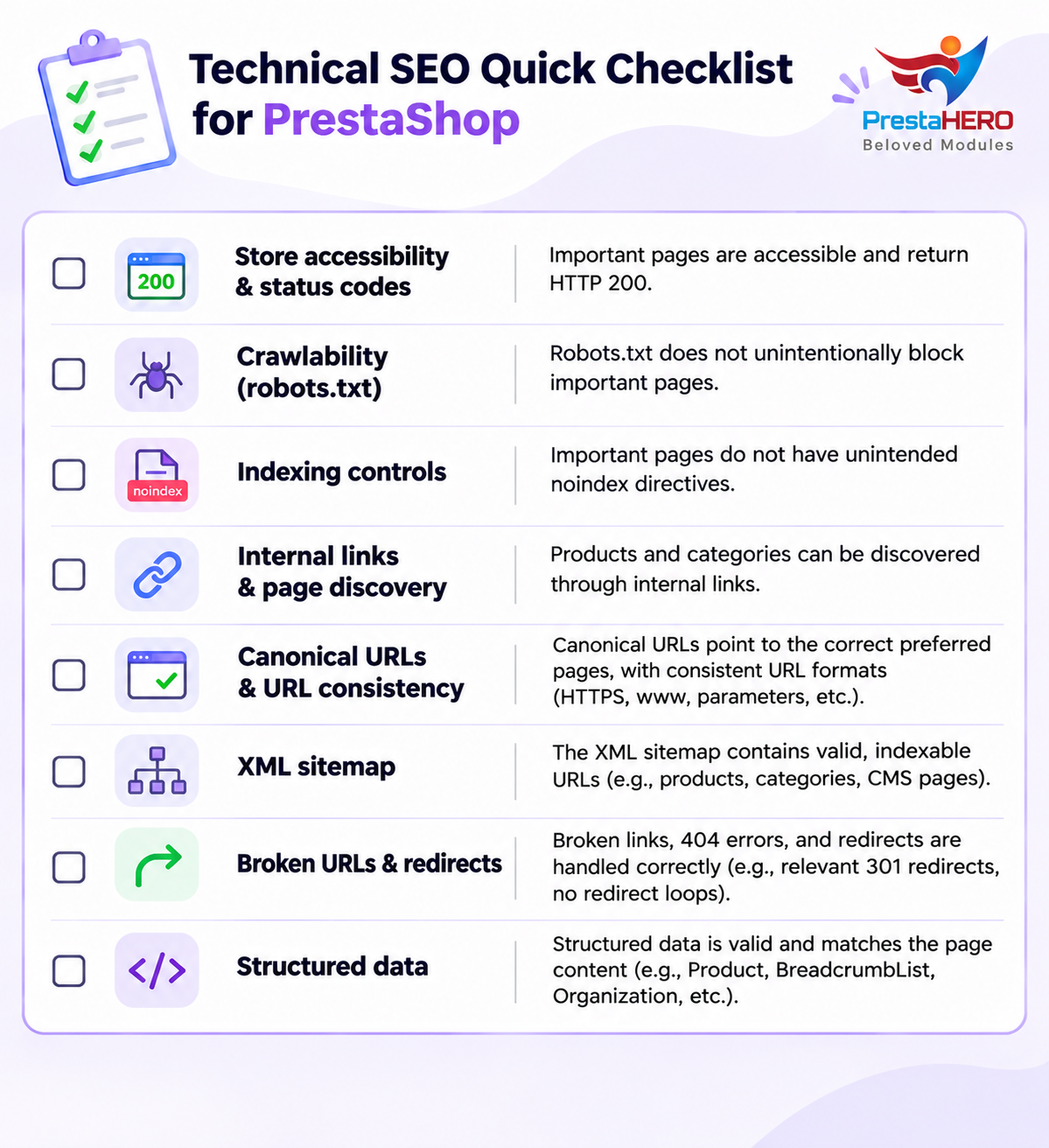
If you find multiple issues, start with those preventing important pages from being accessed, crawled, or indexed. The sections below explain how to perform each check.
1. Check Store Accessibility and HTTP Status Codes
First, confirm that your store and its important pages are accessible to search engines.
How to check
Open several important URLs, including your homepage, a category page, a product page, and a CMS page.
Use your browser's Developer Tools → Network tab or an HTTP status checker to inspect their responses.
| Status | Meaning | What to check |
|---|---|---|
| 200 | Request successful | Expected for normal public pages |
| 301 / 302 | Redirect | Confirm the destination is correct |
| 404 | Page not found | Check whether the missing page is intentional |
| 500 / 503 | Server error or unavailable | Investigate server or maintenance issues |
What else to verify
Check that:
- HTTP URLs redirect correctly to HTTPS.
- Your preferred www or non-www domain is used consistently.
- Redirects do not create loops.
- Your live store is not accidentally in maintenance mode.
A redirect or 404 is not always a problem. What matters is whether the response matches the intended behavior of that URL.
If you want to review common store-level SEO configurations more conveniently, SEO Audit provides checks that can help identify potential configuration issues. Server-level problems may still require separate hosting or server investigation.
2. Check robots.txt and Crawlability
Your robots.txt file controls which areas of your store compliant search engine crawlers are allowed to access. An incorrect rule may prevent Google from crawling important products, categories, or other public pages.
How to check
- Open https://yourstore.com/robots.txt.
- Review the User-agent, Disallow, and Allow rules.
- Look for restrictions affecting important product, category, CMS, or blog URLs.
- Use Google Search Console → URL Inspection to investigate whether Google can crawl important pages.
For example:
User-agent: *
Disallow: /
This rule blocks compliant crawlers from accessing the entire website. It may be appropriate for a test environment, but is generally unsuitable for a live store.
Tip: Let AI help you understand robots.txt
If you're not familiar with robots.txt rules, you can copy the entire file and paste it into an AI tool such as ChatGPT, Claude, or DeepSeek.
Ask the AI to explain the rules in simple terms, identify potentially blocked pages or sections, and highlight anything that may need further investigation.
Here's a prompt you can use:
"Analyze this robots.txt file for my PrestaShop store. Explain what each rule does in simple terms. Identify any rules that might unintentionally block important product, category, CMS, or blog pages, and point out anything I should investigate further. Explain why each potential issue matters."
Note: Before sharing the file with an AI tool, remove any sensitive internal paths or information you don't want to disclose.
AI can help you understand the file, but its findings should be verified before changing any rules. It may not know your complete URL structure or how different crawler rules apply.
Remember that robots.txt controls crawling, not indexing. A page blocked from crawling can still appear in search results under certain circumstances.
If you want to manage robots.txt directly from your PrestaShop Back Office, SEO Audit provides a built-in robots.txt editor. For setup instructions, see our robots.txt configuration guide.
For a deeper look at other factors that can prevent Google from accessing your pages, see our PrestaShop crawlability guide.
3. Check Which Pages Are Indexable
A page can be accessible to search engines but still be excluded from search results because of its indexing directives.
How to check
Choose several important product, category, and content pages.
- Open the page and view its HTML source.
- Search for a robots meta tag.
- Check whether the page contains a noindex directive.
- Use Google Search Console → URL Inspection to review its indexing status.
For example:
<meta name="robots" content="noindex, follow">This tells search engines that support the directive not to index the page.
If an important product or category page has an unintended noindex directive, it should be investigated.
Also check for conflicting directives from different modules or an unexpected X-Robots-Tag HTTP header.
Which Pages Usually Don't Need Indexing?
Not every page on your PrestaShop store needs to appear in Google Search. Some pages provide little SEO value or may create duplicate content.
Common examples include:
- Cart and checkout pages: Shopping carts, checkout steps, and order confirmation pages.
- Customer account pages: Login, registration, account details, and order history.
- Internal search results: Pages generated when customers search for products within your store.
- Filtered and sorted URLs: Product listings with different filters or sorting options that create duplicate or low-value URLs.
- Temporary or low-value pages: Pages created for short-term purposes or pages that offer little unique value to search users.
For duplicate URLs, consider canonical tags rather than automatically applying noindex.
These pages are not automatically problematic, and some filtered pages may be valuable for SEO. Review their purpose before applying noindex.
The goal is to keep important products, categories, and useful content eligible for indexing while preventing unnecessary pages from appearing in search results.
If you want to manage these preferences more easily, SEO Audit provides index/follow controls for supported PrestaShop page types.
For more details on checking indexing signals and understanding why pages may not appear in search results, read our indexability guide.
4. Check Internal Links and Page Discovery
Search engines discover many pages by following links. If an important product or category is poorly connected to the rest of your store, it may be harder to find.
How to check
Start from your homepage and follow your store's normal navigation.
Check whether:
- Important categories are accessible through menus or other internal links.
- Products can be reached from their categories.
- Internal links point to working URLs.
- Breadcrumbs and related-product links work correctly.
- Important pages are not accessible only through search forms or interactions that crawlers may not execute.
Pay particular attention to products that have been moved between categories or pages affected by recent catalog changes.
Look for orphan pages
An orphan page has no meaningful internal links pointing to it.
For example, a product may still exist in your XML sitemap but no longer be linked from any category.
For larger stores, a website crawler can help identify pages that are difficult to discover. Comparing crawled URLs with your XML sitemap can also highlight pages worth investigating.
If you find broken or outdated links, update them to point directly to the correct destination.
Tip: Don't rely on your XML sitemap alone. Important products and categories should also be connected naturally through internal links.
5. Check Canonical URLs and URL Consistency
The same product or content may sometimes be accessible through different URLs. Canonical tags help search engines identify which version you prefer.
How to check
Open an important product or category page and view its HTML source.
Search for:
<link rel="canonical" href="https://yourstore.com/example-product">Verify that:
- The canonical points to the intended preferred URL.
- It uses the correct domain and HTTPS version.
- The destination is accessible.
- It does not unexpectedly point to another product or category.
- Internal links and redirects do not contradict the preferred URL.
Also test common URL variations, such as HTTP versus HTTPS, www versus non-www, and URLs with tracking parameters.
Check Google's selected canonical
In Google Search Console → URL Inspection, compare the user-declared canonical with the Google-selected canonical.
If Google chooses a different URL, investigate whether duplicate content, internal links, redirects, or other signals may be influencing its decision.
For multilingual stores, also check that canonical URLs point to the intended language-specific pages.
If you want to manage these settings from your PrestaShop Back Office, SEO Audit provides canonical URL controls, Friendly URL settings, ID removal options for supported URL types, and redirect management.
You can find setup instructions in our guides to canonical URL configuration and SEO-friendly URLs.
Before changing existing URL structures, make sure you have a plan for redirecting old URLs to their new destinations.
6. Check Your XML Sitemap
Your XML sitemap should contain the preferred URLs you want search engines to discover.
How to check
- Open your store's XML sitemap and confirm it loads successfully.
- Check whether important product, category, and CMS URLs are included.
- Test a few URLs to confirm they return HTTP 200, are not marked noindex, and use the intended canonical URLs.
- Open Google Search Console → Indexing → Sitemaps to review processing status and reported errors.
Common problems
- Important pages are missing.
- Deleted products still appear.
- Sitemap URLs return 404 or redirect elsewhere.
- Noindex pages are included unnecessarily.
- URLs use outdated domains or do not match their preferred canonical versions.
If you find these issues, review the sitemap generation settings and verify the output again after making changes.
Remember that submitting a sitemap does not guarantee that every URL will be indexed.
If you want to manage sitemap generation more conveniently, SEO Audit supports dynamic XML sitemaps for supported PrestaShop content.
For detailed instructions, see our guide to XML sitemap setup and submission.
7. Check 404 Errors and Redirects
Not every 404 error is an SEO problem. Products may be removed, URLs may change, and some missing pages are expected.
The important question is whether the URL should still exist or whether a relevant replacement is available.
How to check
Review 404 URLs using Google Search Console, a website crawler, or your store's error monitoring tools.
For each important URL, decide what should happen:
| Situation | Recommended action |
|---|---|
| A product URL has permanently changed | Redirect to the new URL |
| A removed product has a relevant replacement | Consider redirecting to the replacement |
| A page has been permanently removed without a suitable replacement | Keep a proper 404 or 410 response |
| An internal link points to a missing page | Update the link |
| A redirect points to another redirect | Simplify the chain where practical |
Important Redirect Considerations
Avoid redirecting every missing URL to the homepage. If there is no relevant replacement, a proper 404 response may be more appropriate.
After adding a redirect, test the old URL to confirm it reaches the correct destination without creating a loop.
If you want to monitor missing URLs and manage redirects directly in PrestaShop, SEO Audit provides 404 monitoring and supports 301, 302, and 303 redirects.
For instructions on setting up redirects, see our redirect configuration guide.
8. Validate Structured Data
Structured data helps search engines understand information about your store and its pages.
Common types used on PrestaShop stores include WebSite, Organization, BreadcrumbList, Product, and AggregateRating.
How to check
- Open Google Rich Results Test.
- Enter an important product page URL.
- Review the detected structured data and any reported errors or warnings.
- Repeat the test for other relevant page types.
For general Schema.org validation, you can also use Schema Markup Validator.
What to look for
- Missing required properties.
- Incorrect product prices or availability.
- Invalid JSON-LD syntax.
- Conflicting structured data generated by different modules.
- Ratings or reviews that do not meet applicable Google requirements.
Make sure structured data accurately represents the page content. A warning does not always mean the markup is invalid, so check whether the affected property is required or recommended.
If you want to configure common JSON-LD types directly in PrestaShop, SEO Audit supports WebSite, Organization or Person, BreadcrumbList, Product, and AggregateRating settings.
For setup instructions, see our guide to structured data configuration.
Structured data does not fix crawling, indexing, or canonical problems. Address those issues first when they affect important pages.
Verify Your Changes
After fixing a technical SEO issue, check what your website actually outputs.
Depending on the change, verify the HTTP status, final URL, redirect destination, canonical tag, robots directive, sitemap entry, or structured data.
For important pages, use Google Search Console's URL Inspection tool to check how Google sees the URL. Keep in mind that Google may need time to recrawl and process your changes.
Repeat the relevant checks after major updates, such as changing URL structures, migrating PrestaShop versions, replacing themes, installing SEO-related modules, or reorganizing your catalog.
A setting in your Back Office shows what should happen. Checking the live page confirms whether it actually works.
Keep Your Store's Technical SEO Under Control
Technical SEO is not about making every URL indexable or fixing every warning. It is about ensuring that important pages can be accessed, discovered, and indexed with consistent technical signals.
Use this checklist to identify potential problems, prioritize those affecting your most important pages, and verify the results after making changes.
If you want to manage several of these technical SEO tasks from one place, SEO Audit provides tools for reviewing store-level settings and managing indexing preferences, canonical URLs, XML sitemaps, robots.txt, redirects, and structured data directly from your PrestaShop Back Office.
For a broader explanation of how these checks fit into your overall SEO strategy, read PrestaShop SEO Audit: A Practical Guide.