

How to Generate Instagram Access Token for a Business Account
Follow these step-by-step instructions to generate and retrieve an Instagram access token for your business account.
*Note: Ensure you have a business Instagram account linked to a Facebook page. If you’re using a personal Instagram account, you’ll need to convert it to a business account. Refer to Facebook’s guide on how to make this conversion.
Need a visual guide? Watch the full step-by-step video here:
STEP 1: Connect Your Instagram Account to Your Facebook Page
Before you begin
- You’ll need a creator or business account on Instagram. Learn how to set up a creator account or set up a business account on Instagram.
- You'll need a Facebook Page.
- You'll need a Facebook personal account that has an admin role on your Facebook Page.
Connect your Facebook Page to your Instagram Account
You can connect from Instagram or from Facebook:
On Instagram (mobile/web):
- Open Instagram → Profile → Edit profile.
- Under Public business information, choose Page → Connect or create a Facebook Page, then follow the prompts.
From Facebook Page / Business Suite:
- Open your Page (or Meta Business Suite) → Settings → Linked accounts / Instagram.
- Connect the account and sign in to the Instagram Business/Creator account.
Note: If your Facebook Page is added to your Meta Business Account in Business Manager, you must also add the professional Instagram account to the same Meta Business Account before you can connect them.
STEP 2: Create A Facebook App
Go to Meta for Developers and log in with your Facebook account.
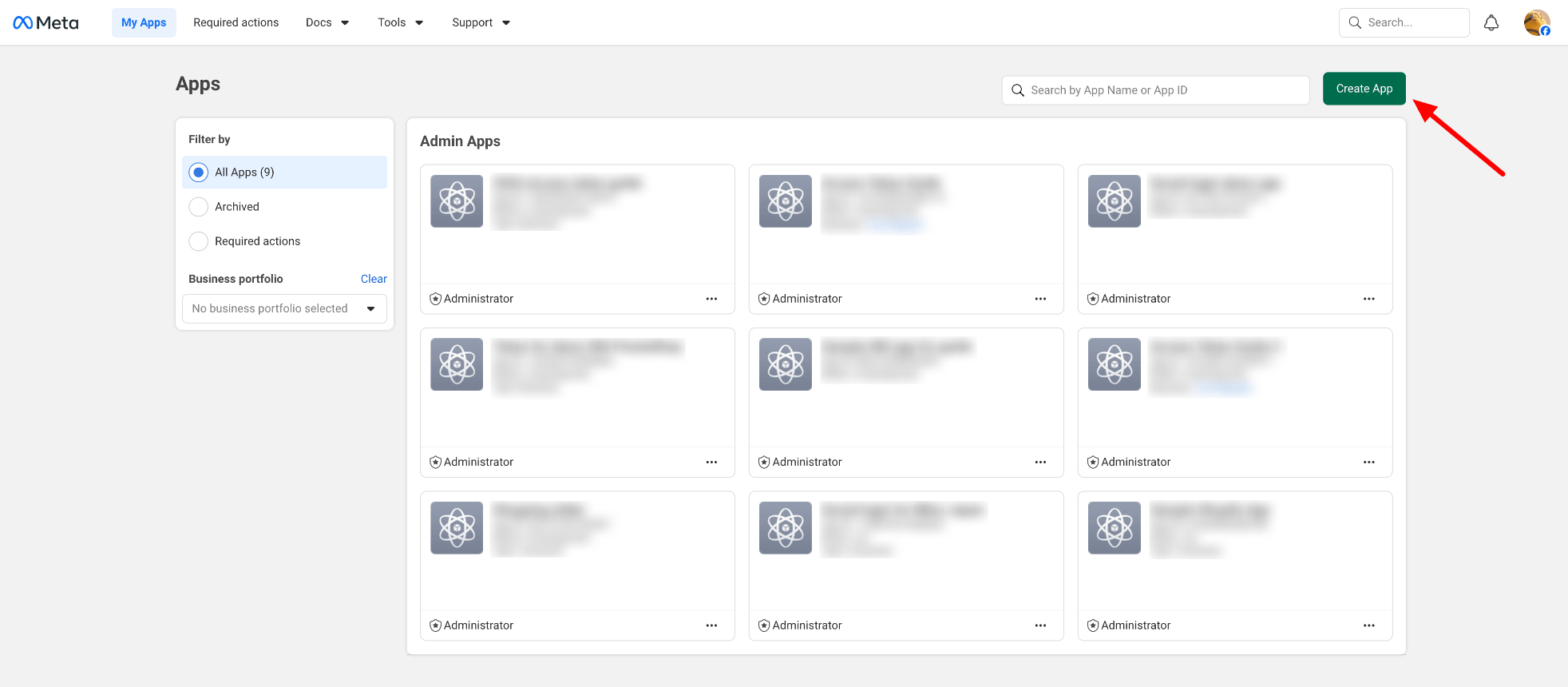
Click My Apps in the top-right corner.
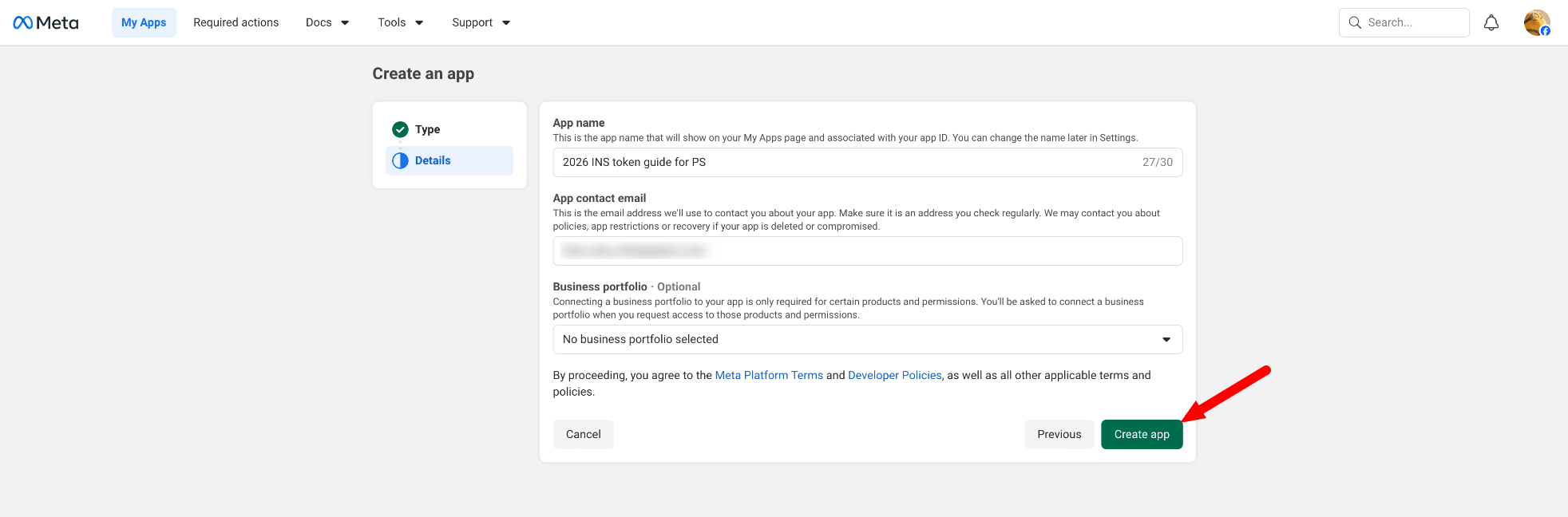
Click Create App.
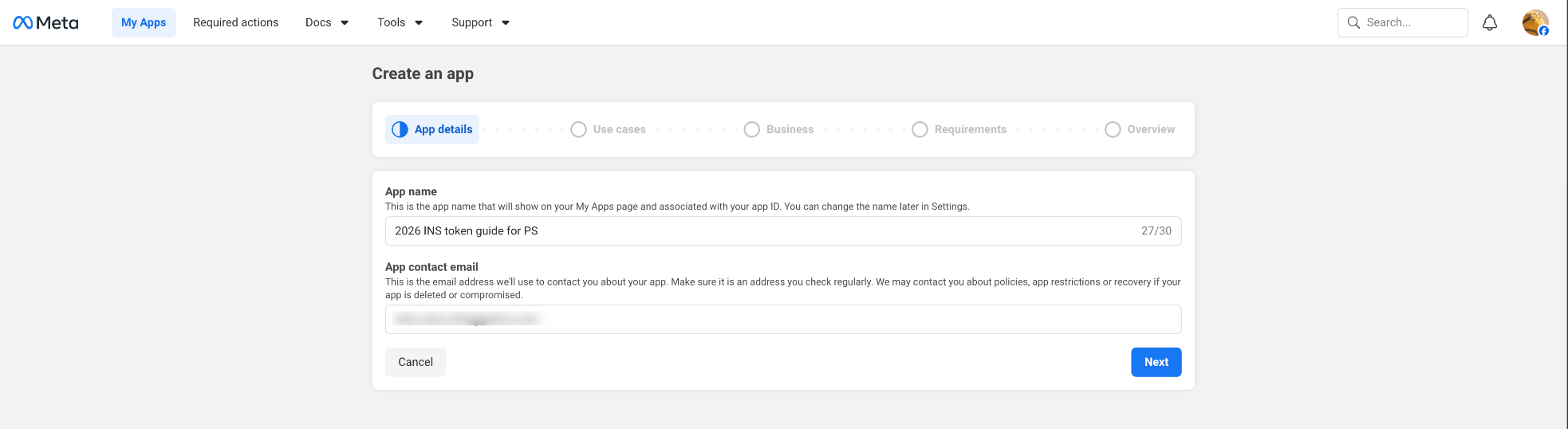
Enter the required information: App Name, App Contact Email. Then click Next.
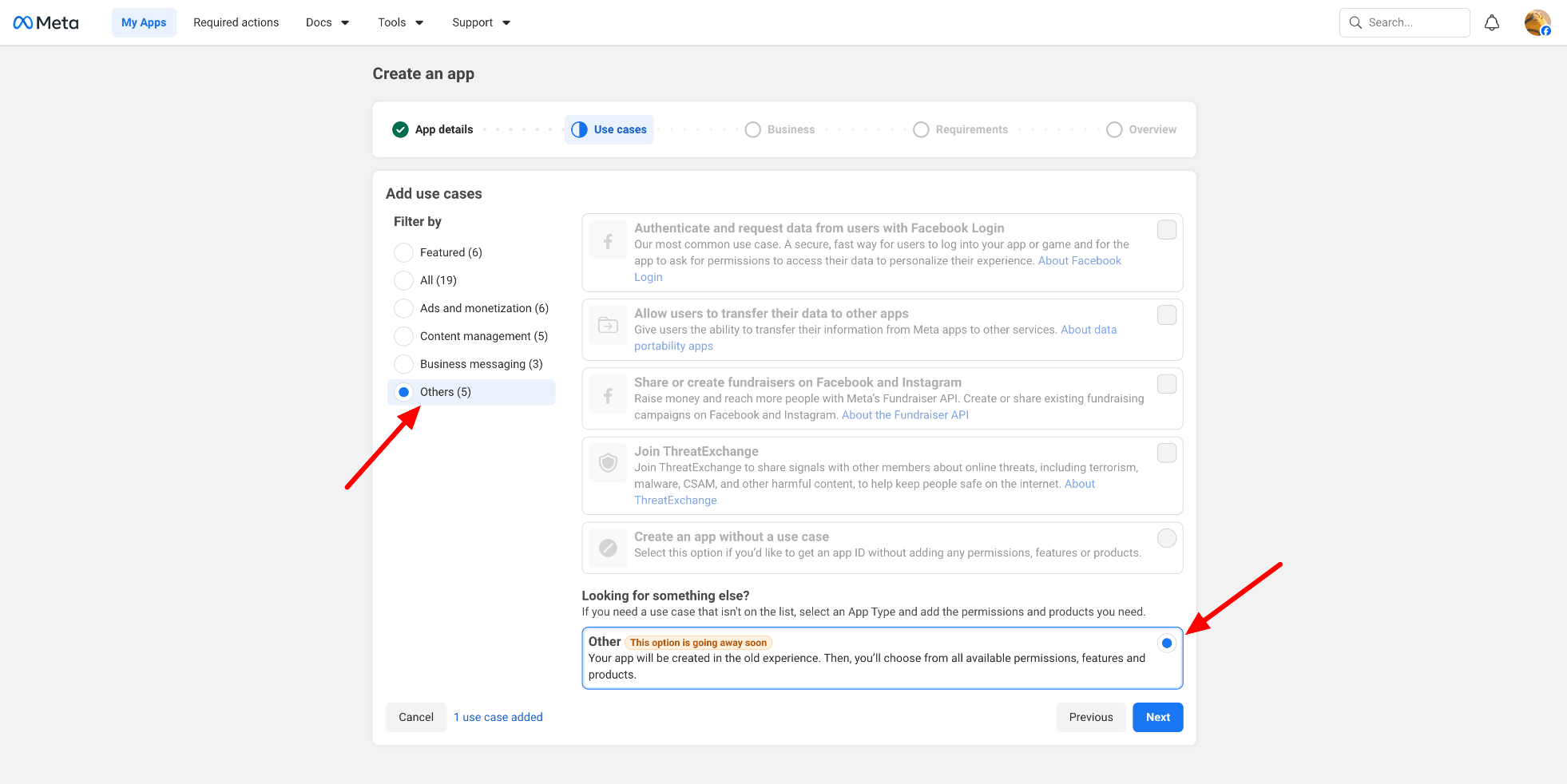
In the Use cases section:
- Select Others → Other. Click Next.
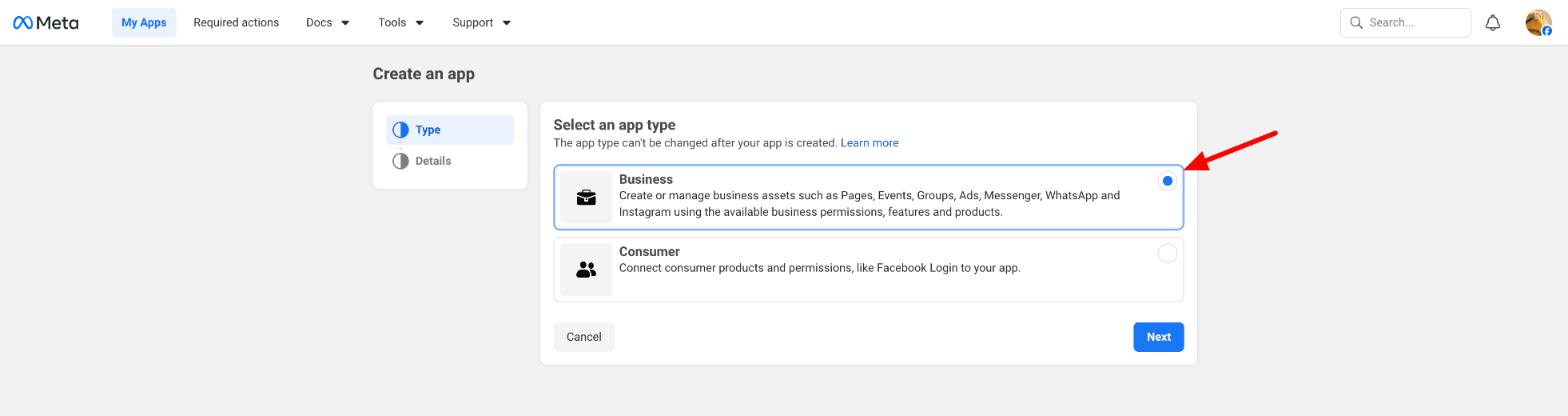
- Select Business as the app type, then click Next.
- Click Create App to finish.
STEP 3: Get App ID and App Secret
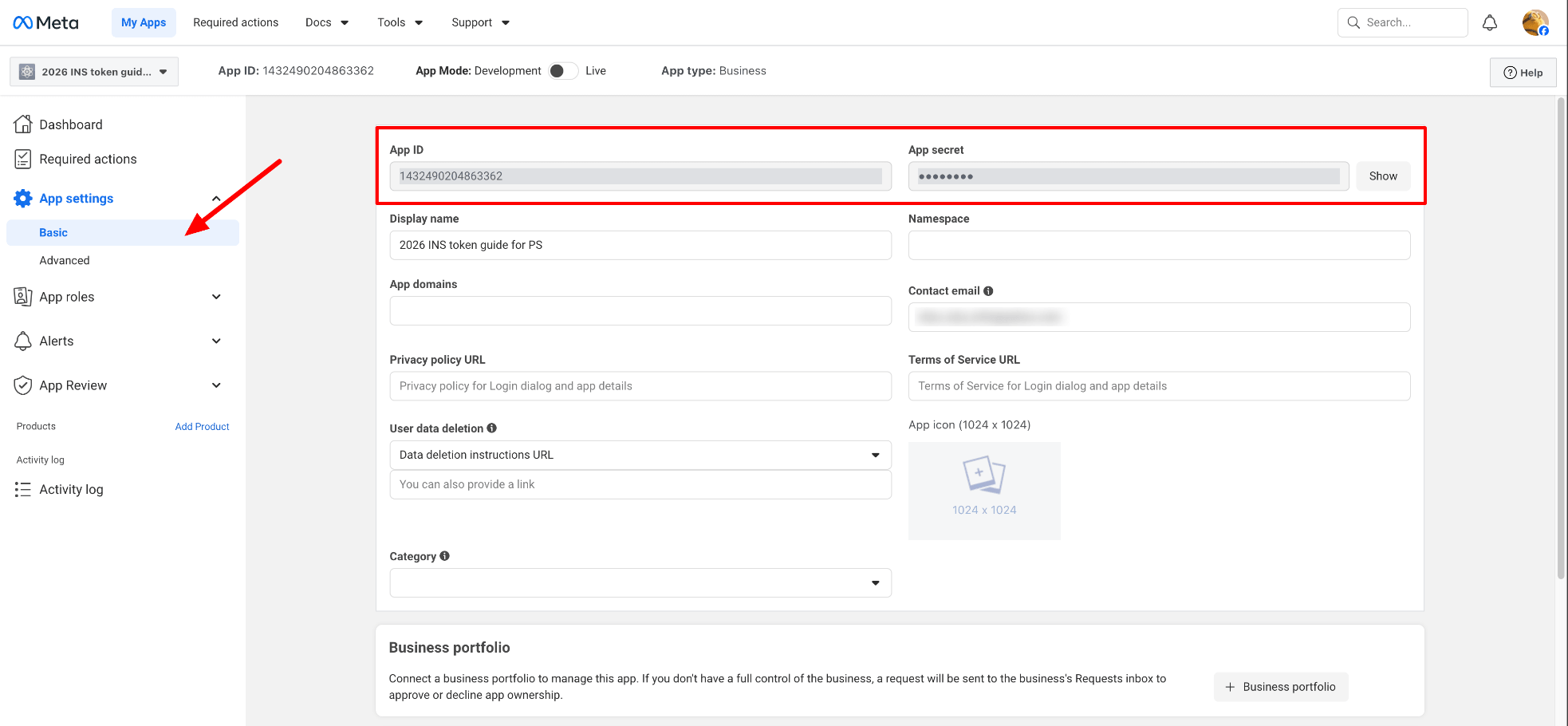
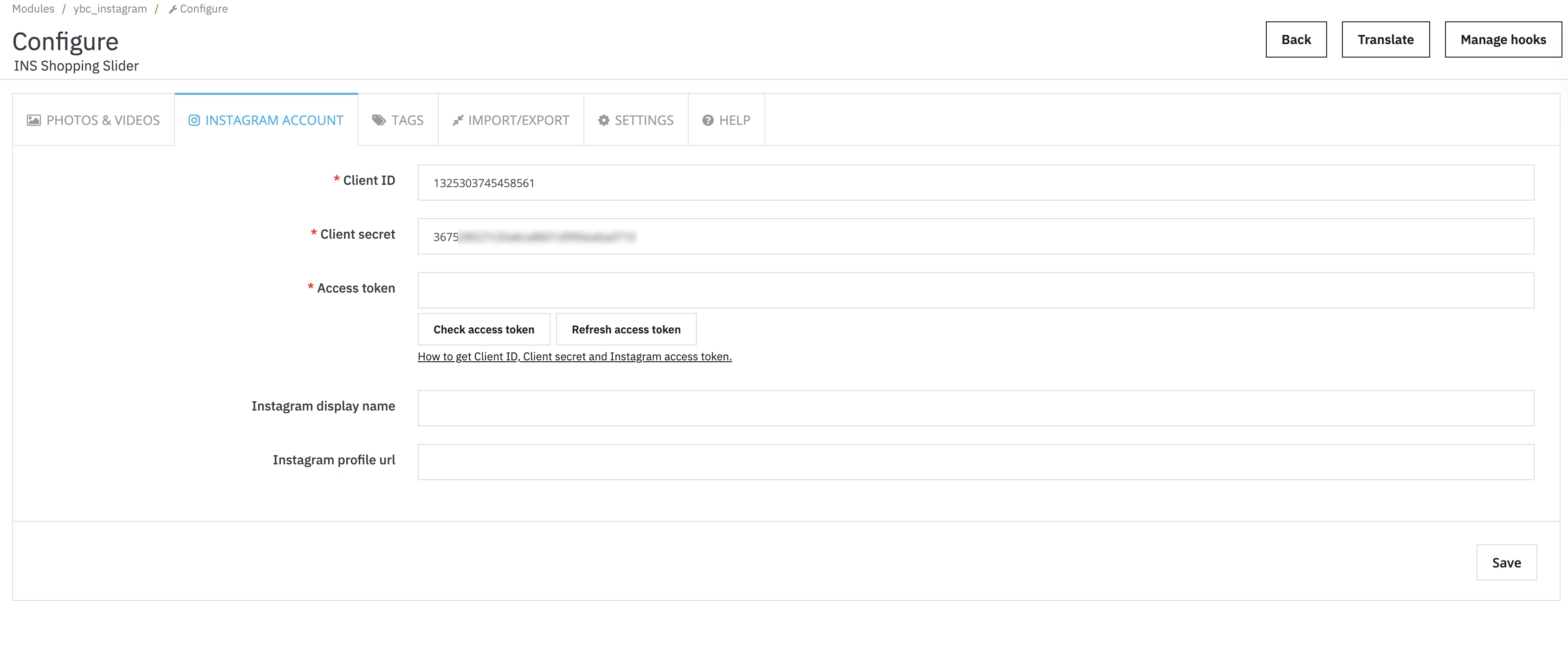
Navigate to “App settings >> Basic”. Copy the App ID and App secret key and paste them into the configuration page of “INS Shopping Slider” module:
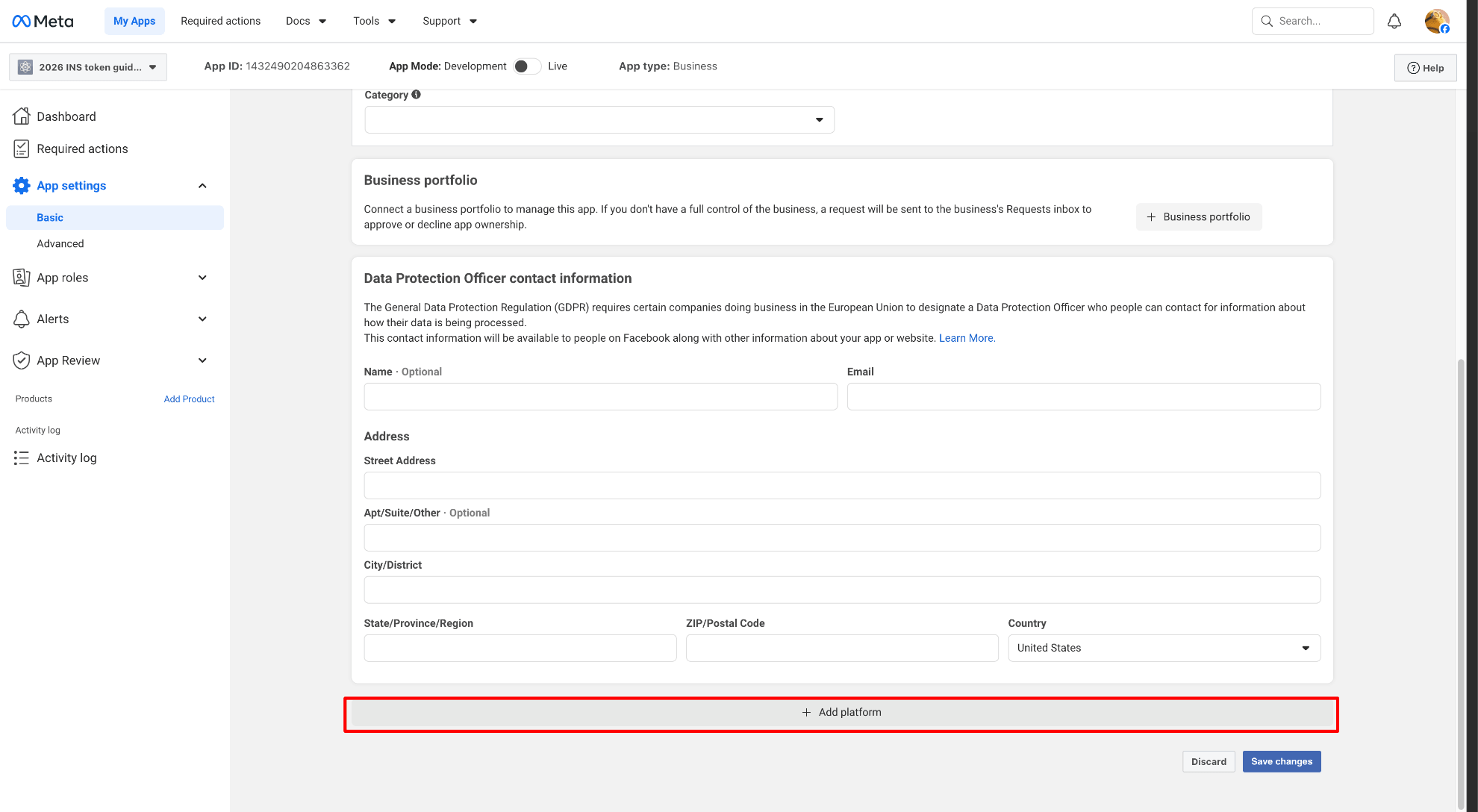
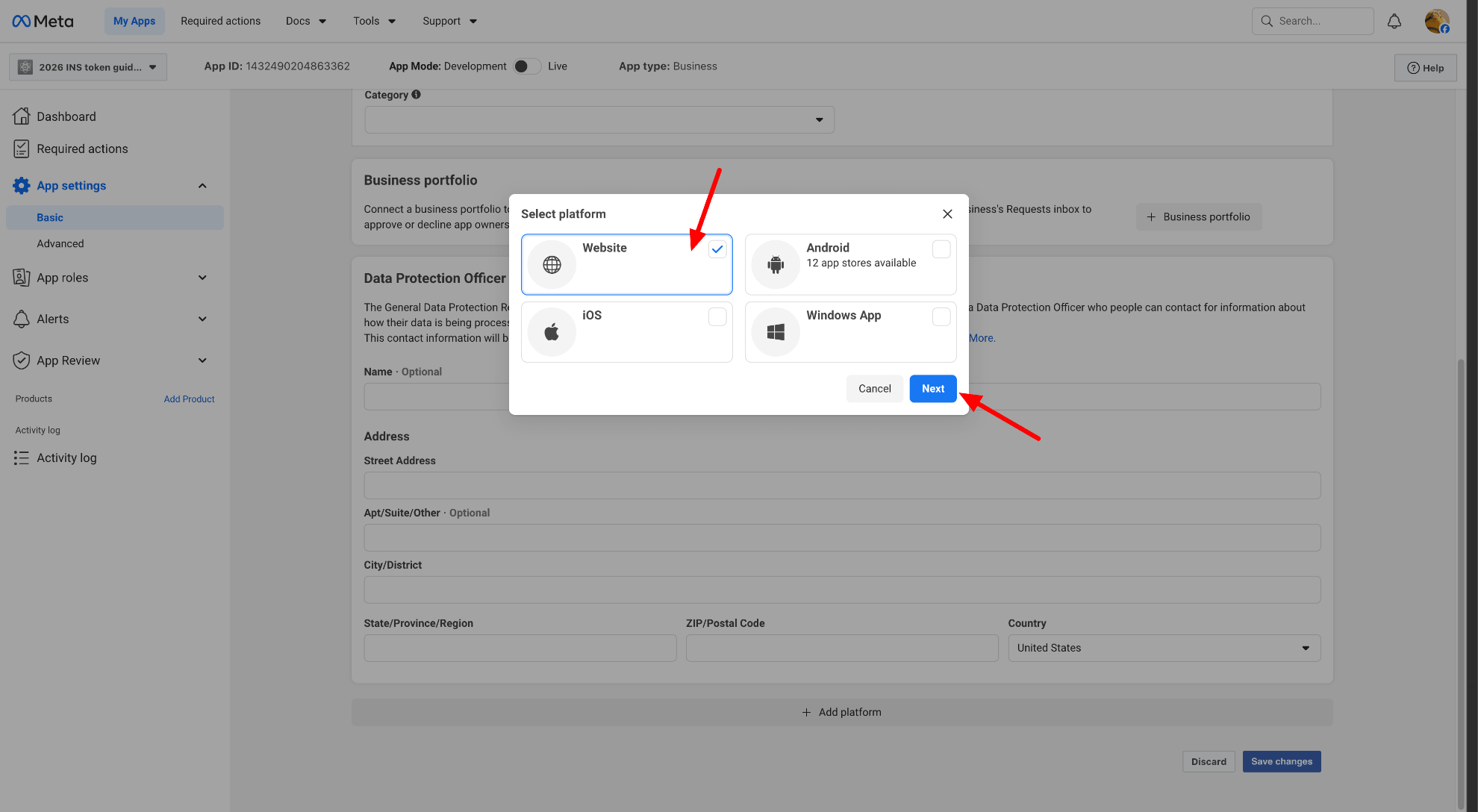
Scroll down and click on “Add platform” button.
Select “Website” then click “Next”.
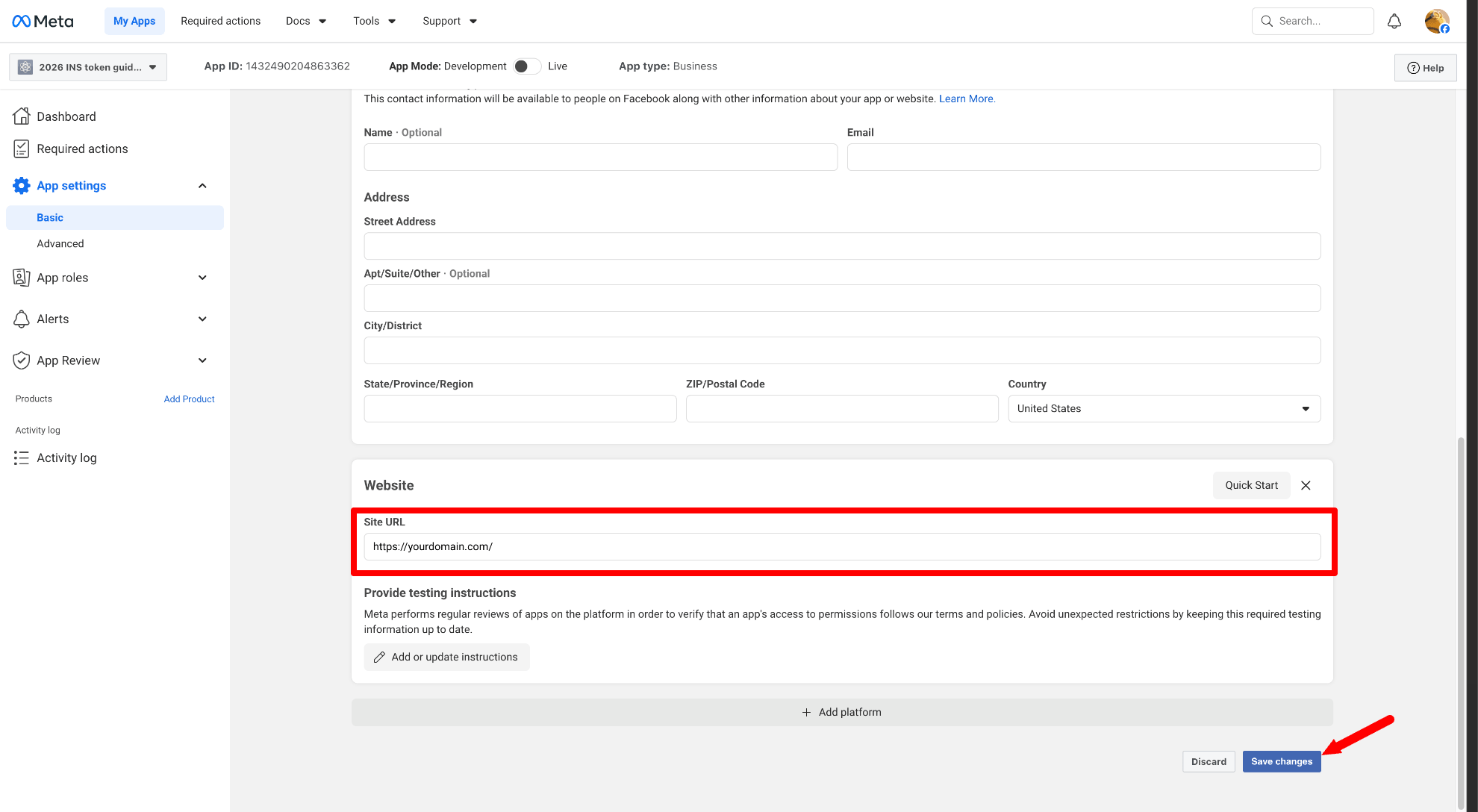
Enter your website URL then click “Save changes”.
STEP 4: Add Facebook Login for Business
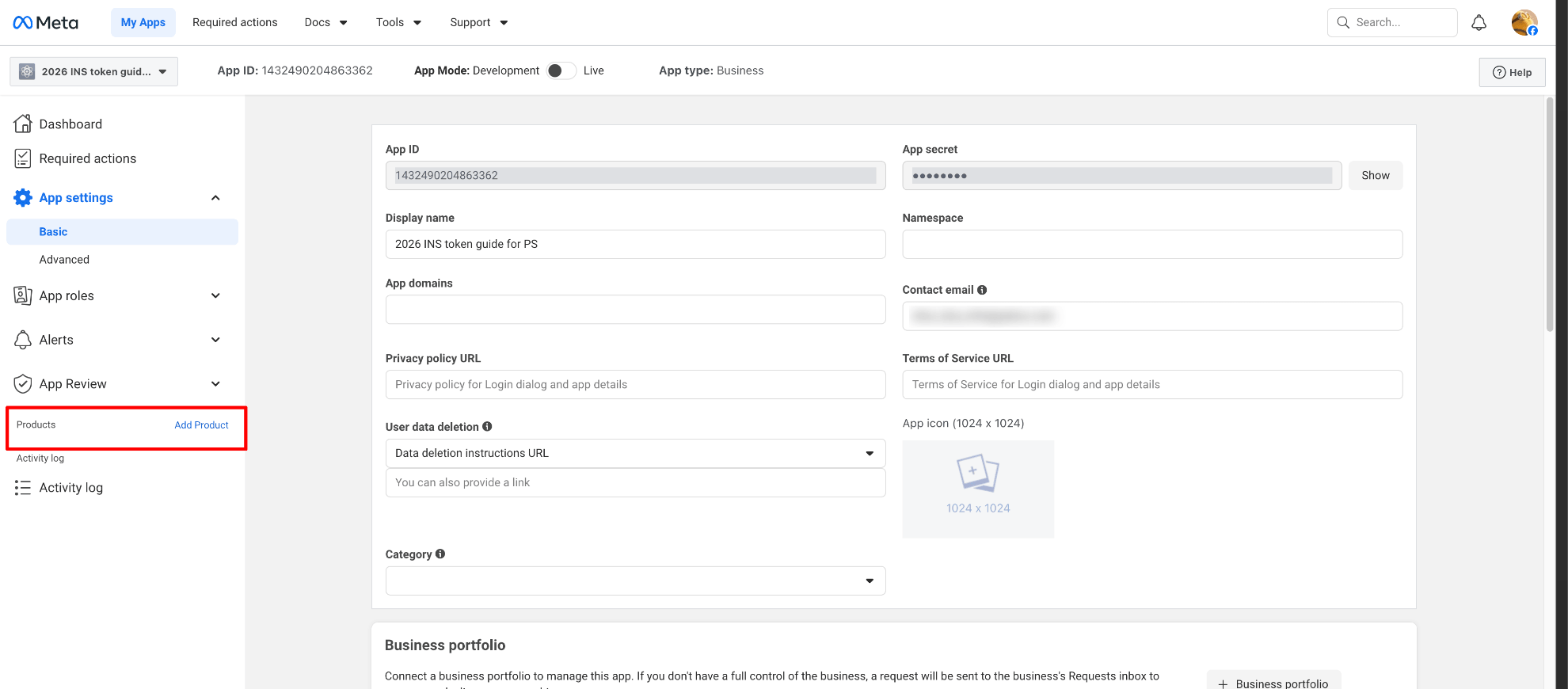
In the sidebar, click “Add Product”.
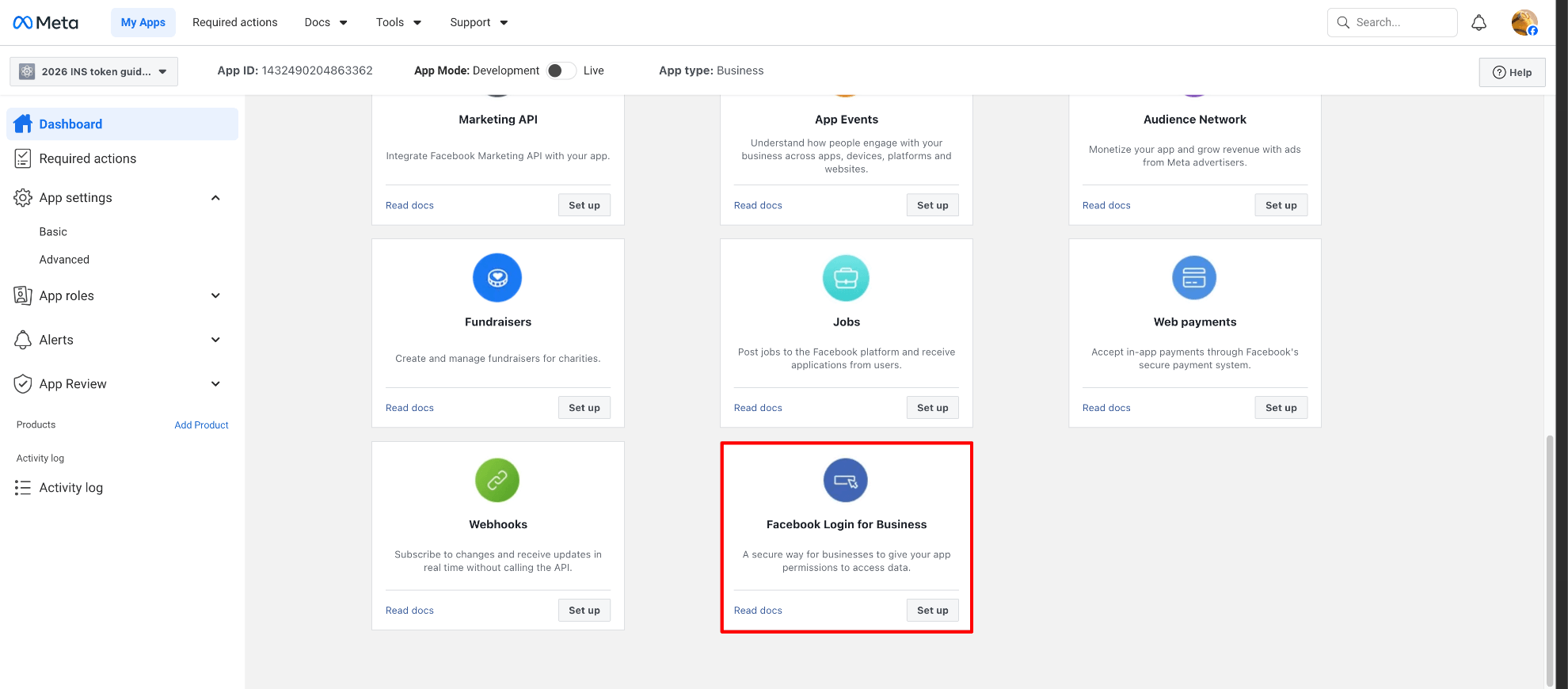
Find Facebook Login for Business. Click Set up.
STEP 5: Generate Access Token
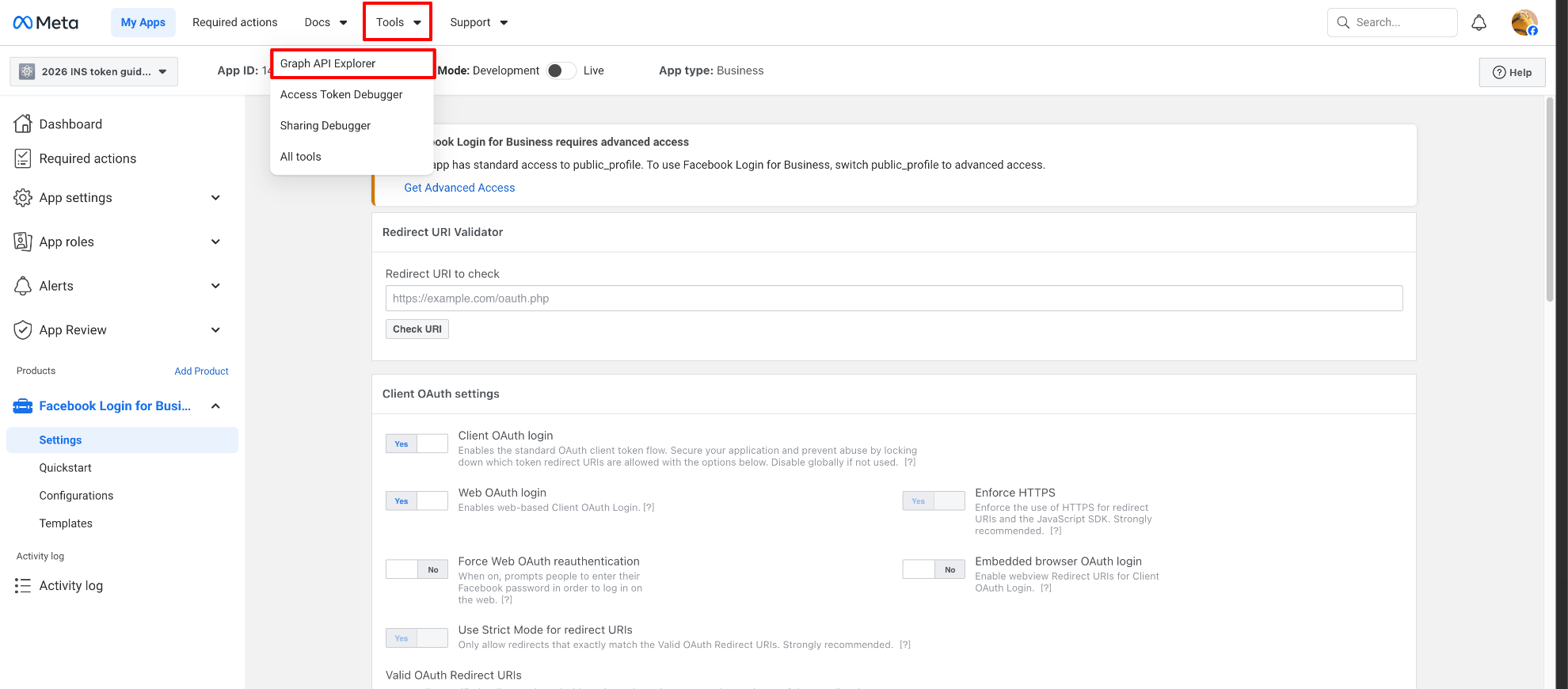
From the top menu, go to Tools → Graph API Explorer.
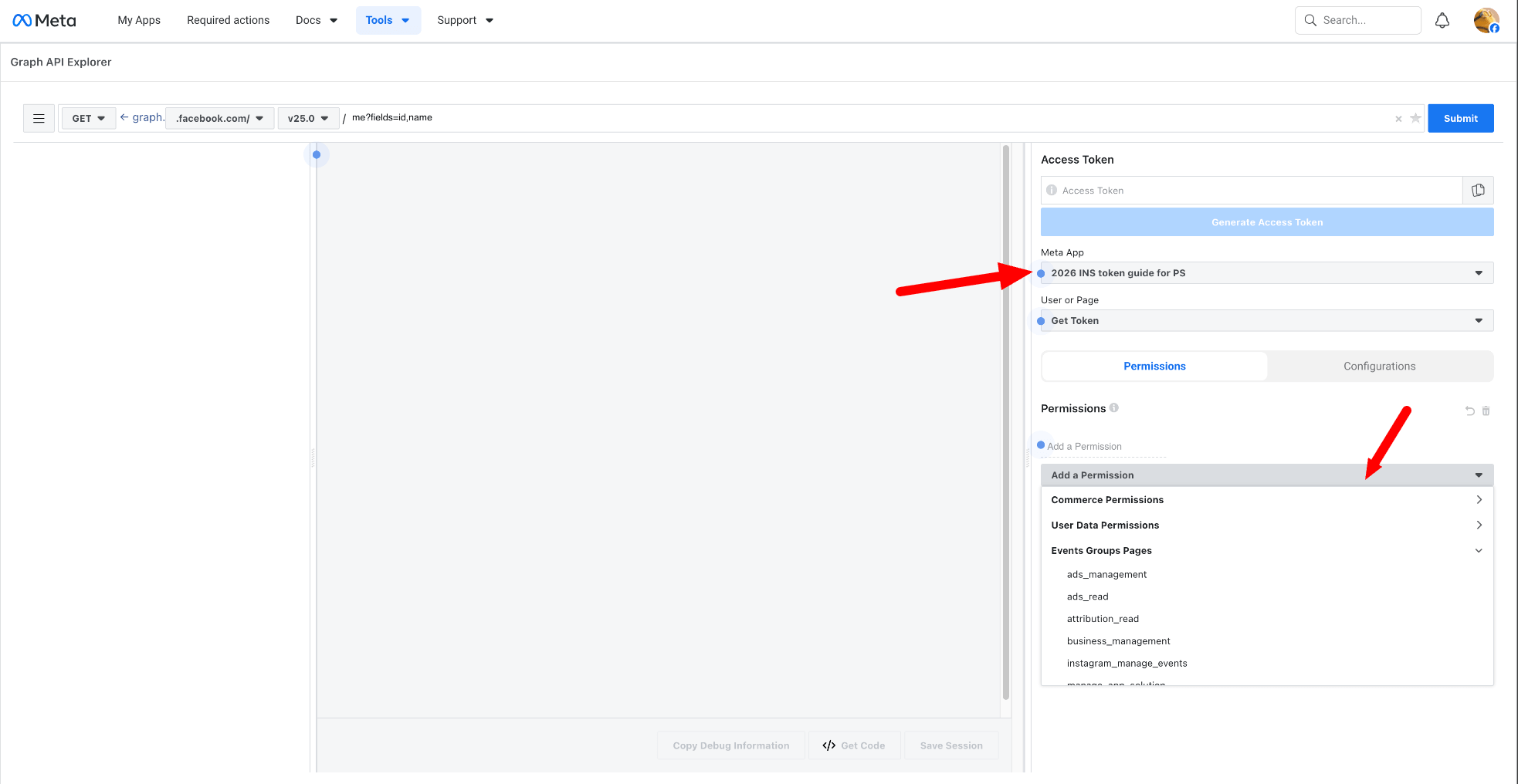
In the Meta App dropdown, select the app you just created. Click Add a permission and select the required permissions to access Instagram data.
Note: You must include: instagram_basic permission
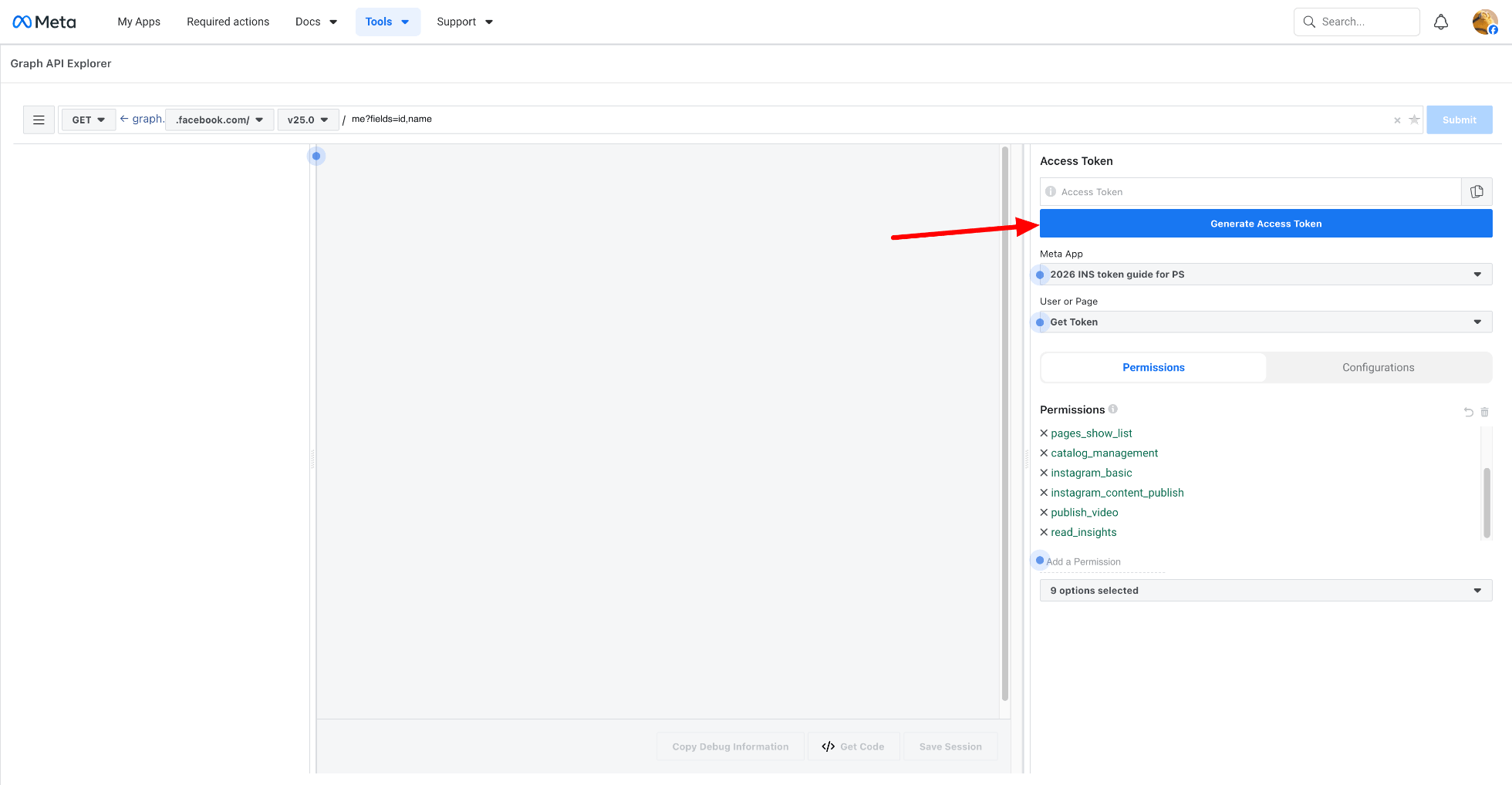
Click Generate Access Token.
A popup will appear. Click Continue and allow the app to access your data.
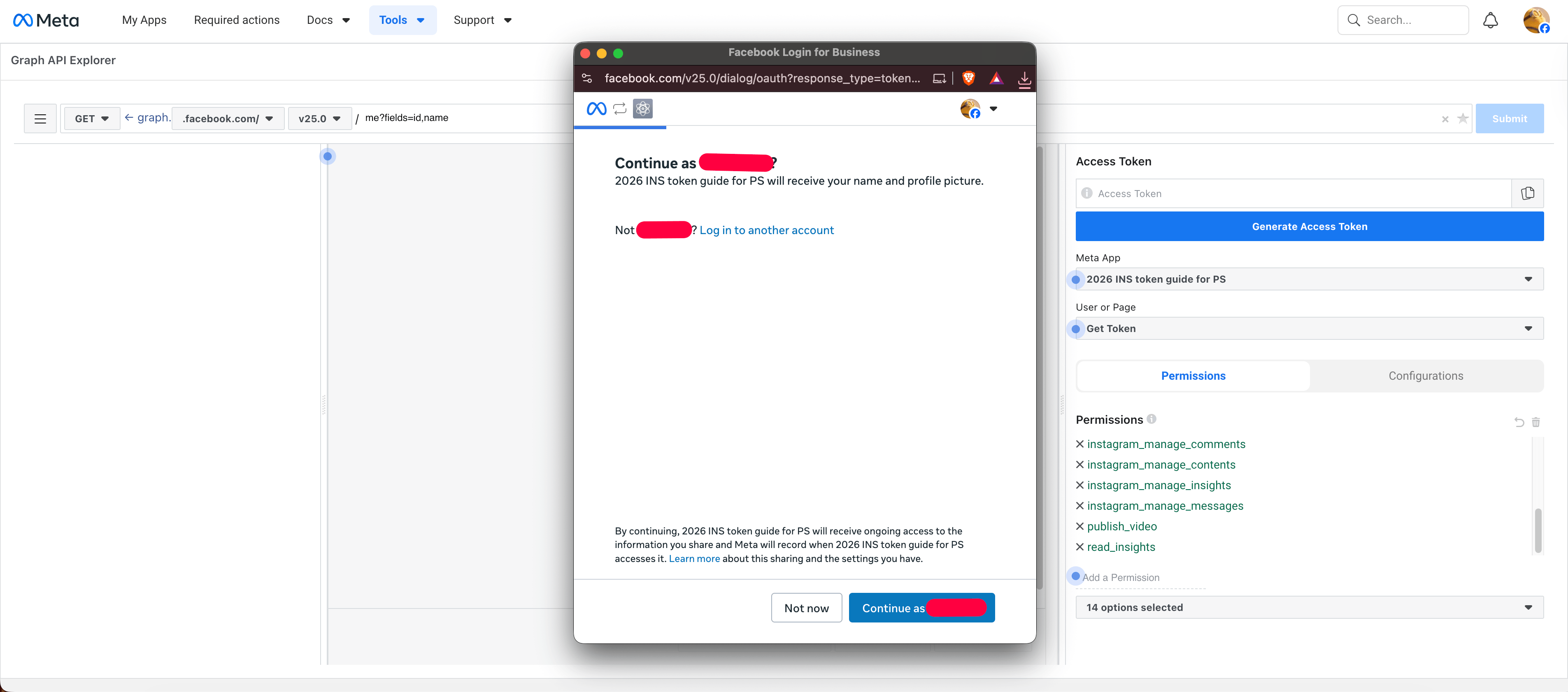
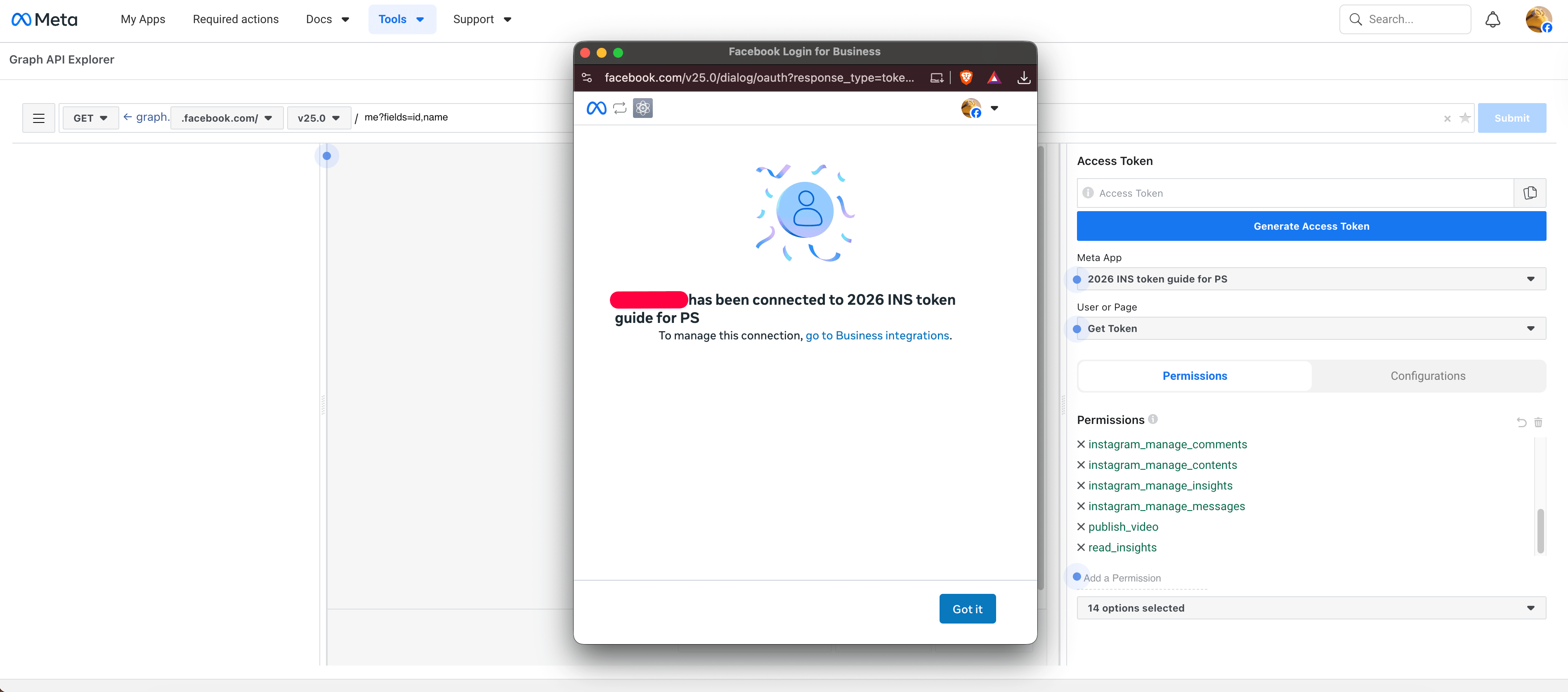
After authorization, an Access Token will be generated. Copy this token.
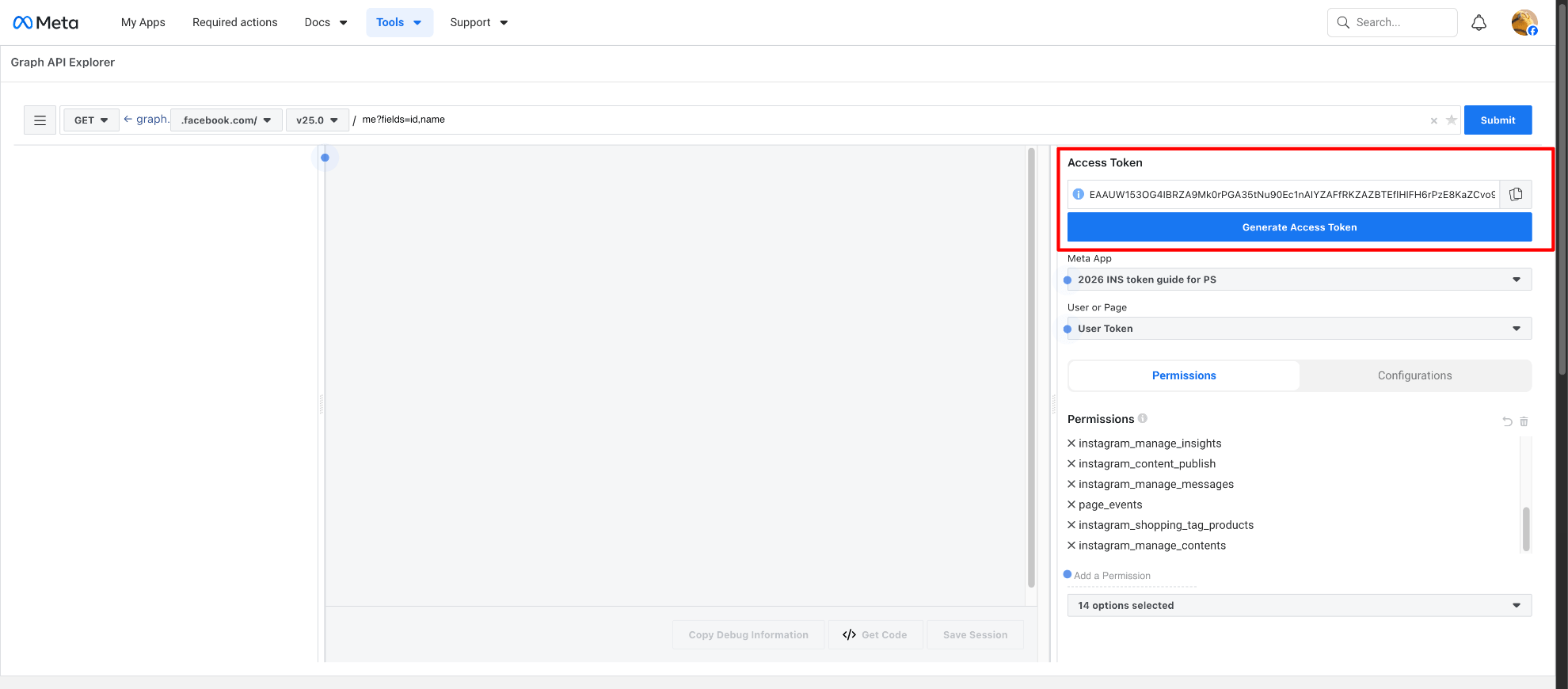
STEP 6: Extend the Access Token
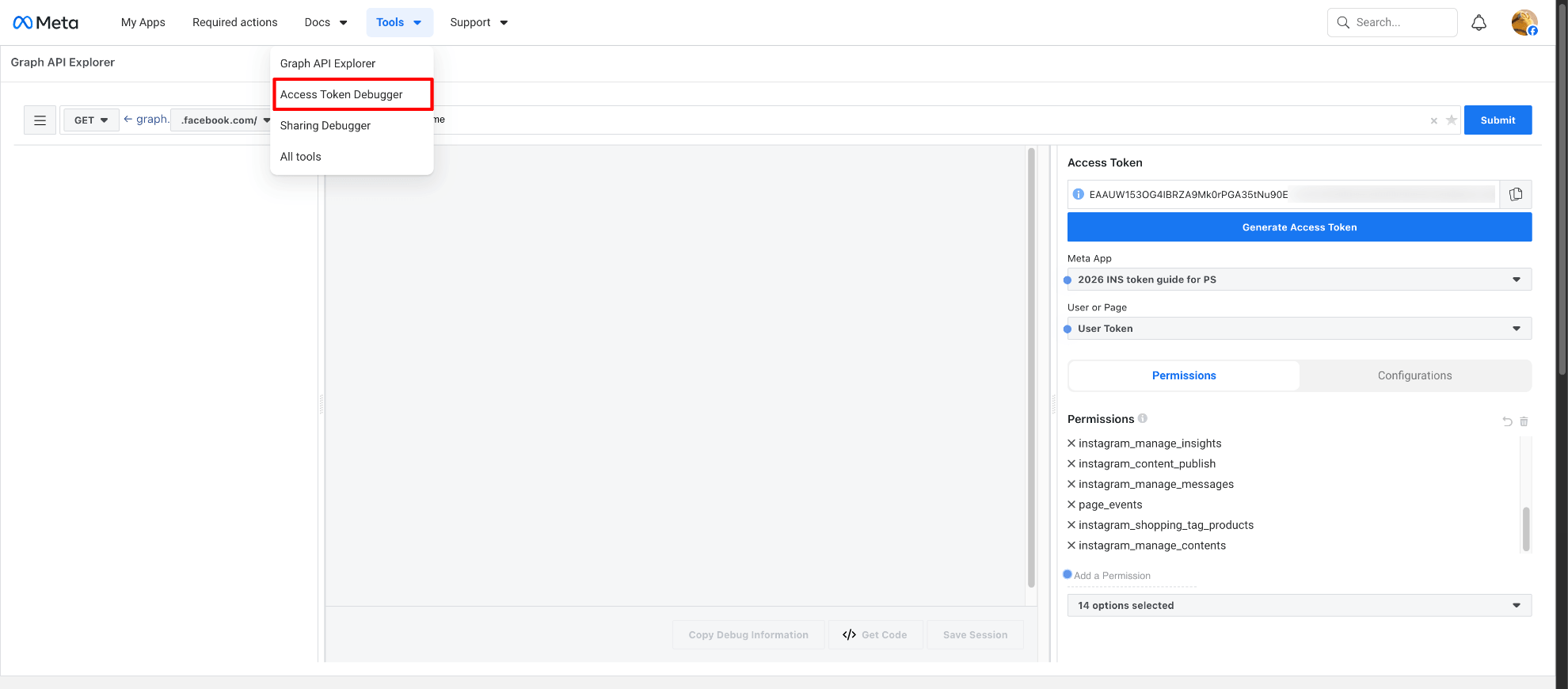
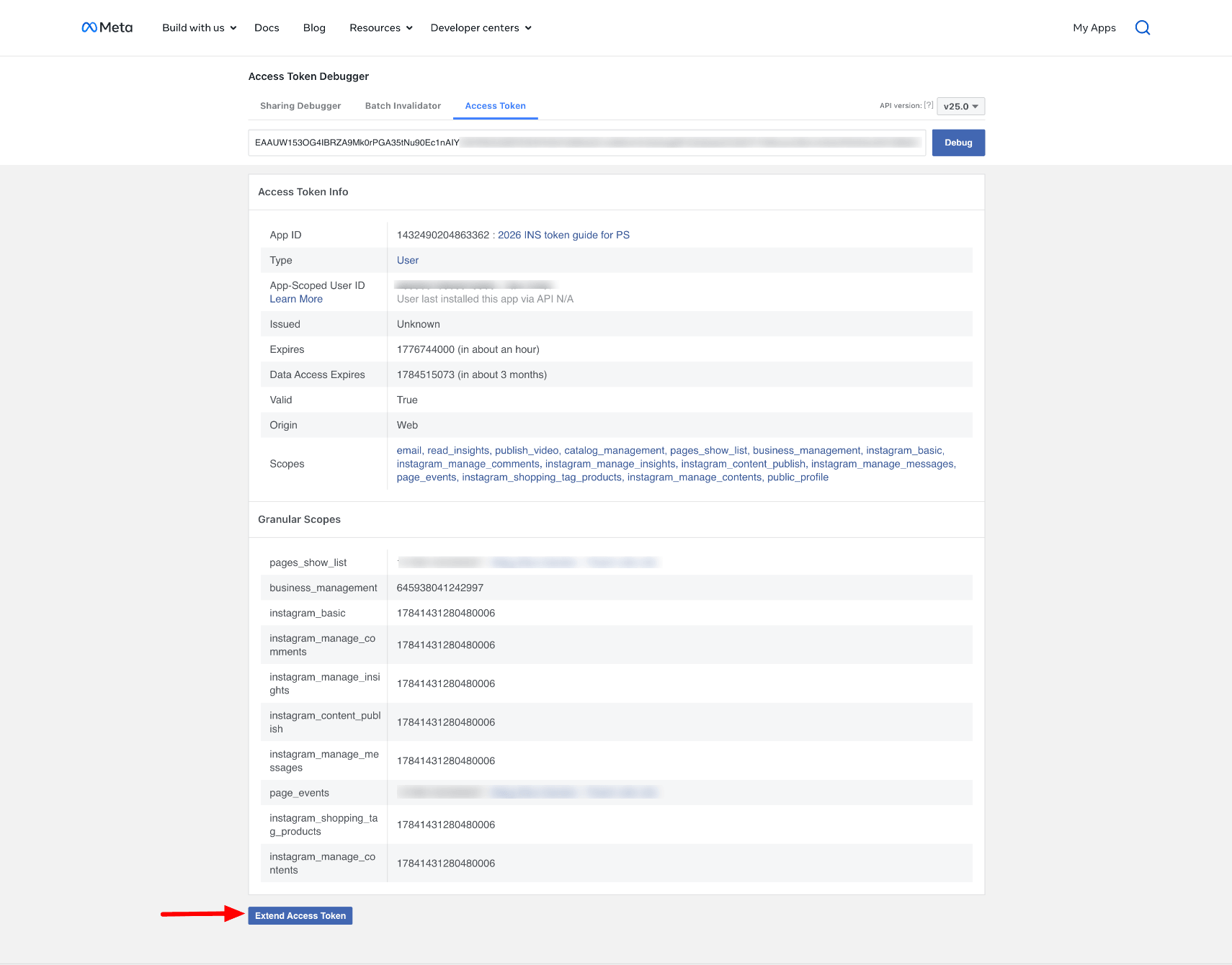
From the top menu, go to Tools → Access Token Debugger.
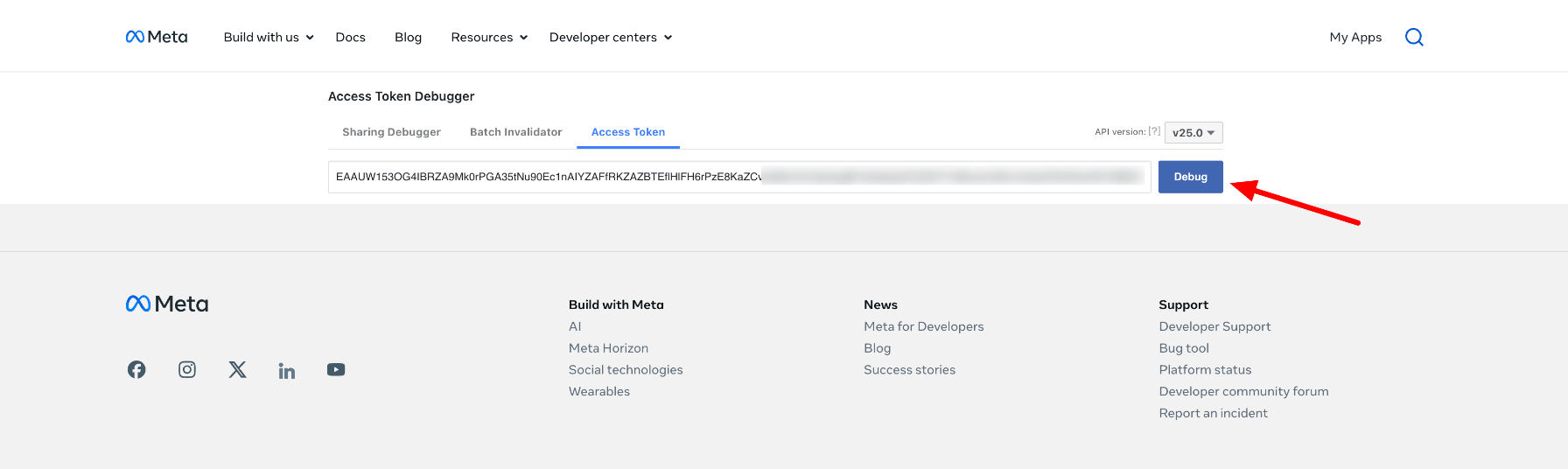
Paste your access token into the input field and click Debug.
Scroll down to the bottom of the page. Click Extend Access Token.
Copy the extended access token.
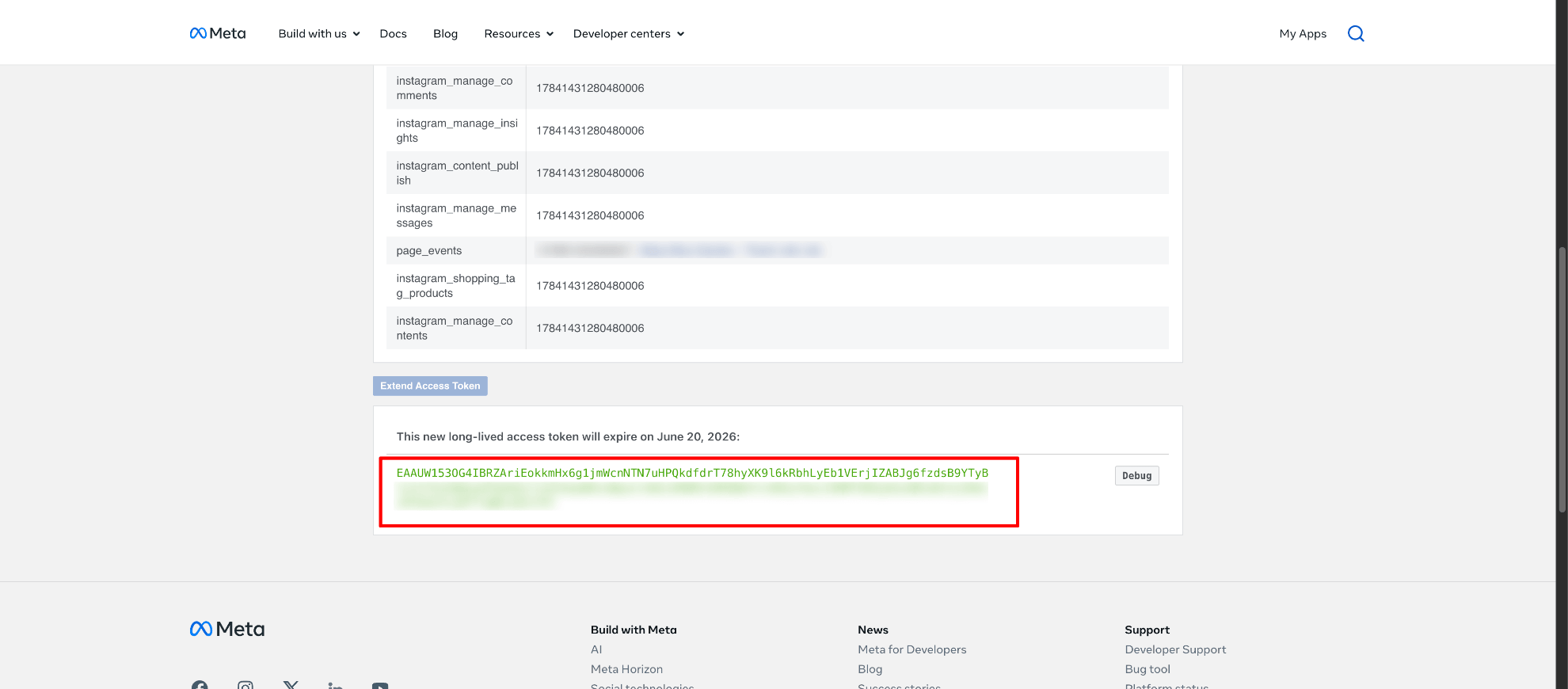
Use the extended access token in your application or module configuration.
Notes
- The extended token is recommended because it has a longer expiration time.
- If your token expires, you will need to repeat the process to generate a new one.
- Make sure all required permissions are granted during token generation.