

Cách sử dụng SEO Checklist trong PrestaHero SEO Audit
The SEO Checklist in PrestaHero SEO Audit gives you a quick view of important store-wide SEO and production settings, including friendly URLs, HTTPS, sitemaps, robots.txt, caching, URL configuration, etc.
The checklist is a starting point for finding configuration gaps. A failed item does not always mean you have a serious SEO problem, and a fully completed checklist does not mean every page on your store is optimized.
For a more comprehensive look at auditing a PrestaShop store, see our PrestaShop SEO Audit: A Practical Guide.
How to use the SEO Checklist
In your PrestaShop Back Office, go to: SEO Audit → Dashboard
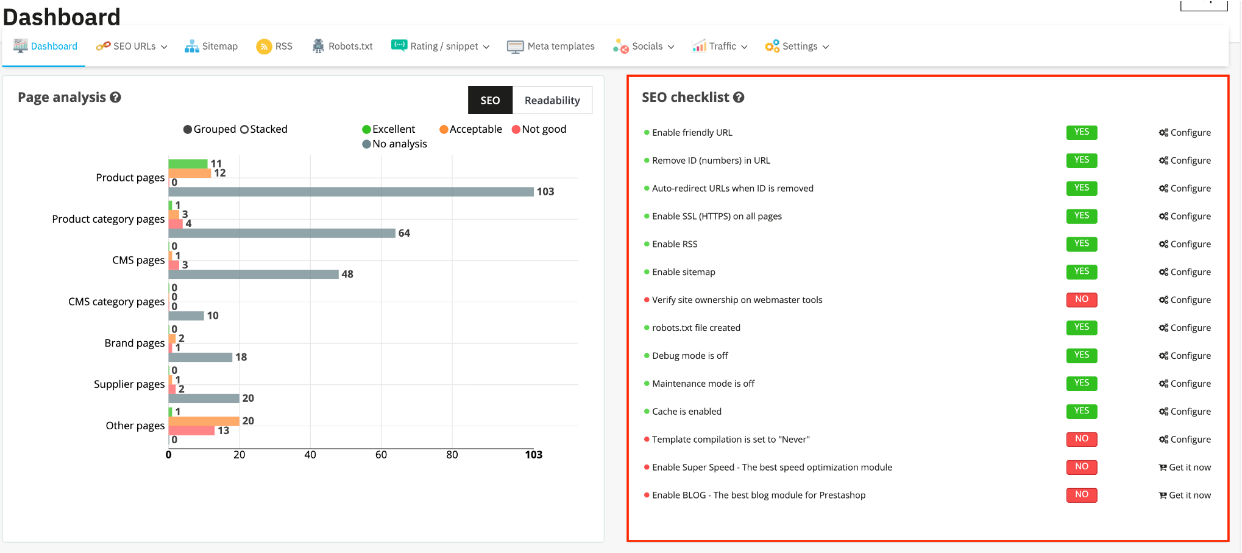
The checklist displays the current status of each item. Where applicable, you can follow the provided link to the relevant PrestaShop or SEO Audit configuration screen.
Do not treat every incomplete item with the same priority. In general:
- Fix settings that can prevent a live store from being accessed or crawled first.
- Check URL and redirect settings carefully before changing existing URLs.
- Make sure search engines can discover important pages through the sitemap and appropriate crawl directives.
- Review performance-related settings afterward.
- Treat complementary modules and optional features as recommendations, not mandatory SEO requirements.
Review each SEO Checklist item
1. Enable Friendly URLs
Priority: High
Type: PrestaShop core setting
Friendly URLs replace parameter-heavy PrestaShop URLs with cleaner, more readable URLs that describe the page content.
For example, a product URL may change from:
Before: example.com/index.php?id_product=123&controller=product
After: example.com/123-running-shoes.html
If this check fails, enable Friendly URLs in PrestaShop before configuring other URL changes.
2. Remove IDs from URLs
Priority: Optional
Type: SEO Audit capability
SEO Audit can remove numeric IDs from supported PrestaShop URLs, making them shorter, cleaner, and easier for users to read and share.
For example:
Before: example.com/123-running-shoes.html
After: example.com/running-shoes.html
Should you remove IDs from existing URLs?
For a new store, using cleaner URLs without IDs can be a good choice from the start.
For an established store, consider the change more carefully. SEO Audit automatically uses the new URLs in the sitemap and redirects supported old ID-based URLs to their new versions. However, existing backlinks and some previously added internal links may still point to the old URLs and reach the new pages through redirects.
If your current URLs have been live for a long time, already rank well, or have many backlinks, you do not need to remove their IDs just to complete this checklist item. Keeping an established URL structure can be a reasonable choice.
If you decide to remove IDs, make sure Friendly URLs are enabled first, then enable ID removal. For step-by-step instructions, see How to Configure SEO-Friendly URLs with PrestaHero SEO Audit
3. Auto-redirect URLs when ID is removed
Priority: Required when Remove IDs is enabled
Type: SEO Audit capability
This check applies only when Remove IDs from URLs is enabled.
When IDs are removed and Auto-redirect is enabled, SEO Audit automatically redirects supported old ID-based URLs to their new ID-free versions. This ensures that visitors and search engines following an old URL can still reach the correct page.
For example:
Old URL:
example.com/123-running-shoes.html
↓ redirects (301 or 302) to
New URL:
example.com/running-shoes.html
This is especially important because existing backlinks, bookmarks, or previously added internal links may continue to point to the old URL.
If you enable Remove IDs from URLs, keep this redirect feature enabled so old URLs continue to lead to their corresponding new pages.
4. Enable SSL and HTTPS
Priority: High
Type: PrestaShop core setting
This check verifies whether SSL is enabled for your store.
A production store should serve its pages over HTTPS for secure communication between the browser and your website. If the check fails, review your SSL certificate and PrestaShop HTTPS configuration.
This is a fundamental site configuration issue rather than something SEO Audit itself enables.
5. Enable RSS
Priority: Optional
Type: SEO Audit capability
SEO Audit can provide an RSS feed for configured store content.
RSS can support content syndication and discovery, but it is not required for search engines to crawl or index your store. If you do not use RSS as part of your content or distribution strategy, this item does not need to be treated as a critical SEO problem.
6. Enable the XML sitemap
Priority: Recommended if your store does not already have a sitemap
Type: SEO Audit capability
SEO Audit can generate a dynamic XML sitemap for supported page types such as products, categories, CMS pages, manufacturers, and suppliers.
This check only verifies whether the XML Sitemap feature in SEO Audit is enabled. If your store already has a valid XML sitemap generated by PrestaShop or another module, you do not need to enable another sitemap just to complete this checklist item.
If your store does not have a sitemap, you can enable the XML Sitemap feature in SEO Audit, review which page types are included, and then submit the sitemap URL to Google Search Console.
See How to Configure an XML Sitemap with PrestaHero SEO Audit and Submit It to Google Search Console for the full configuration and submission process.
7. Verify your website with webmaster tools
Priority: Recommended
Type: SEO Audit capability with external webmaster services
SEO Audit supports verification codes for services such as Google, Bing, Baidu, and Yandex. You can also indicate that your website has been verified through another method.
Verification gives you access to the corresponding webmaster platform and its search data or diagnostic tools.
A failed checklist item does not mean your site cannot rank or be indexed. It means SEO Audit has not detected a configured verification method.
8. Create and review robots.txt
Priority: High when crawl directives need attention
Type: SEO Audit capability
The robots.txt file tells search engine crawlers which parts of your store they are allowed or not allowed to crawl.
SEO Audit checks whether your store has a robots.txt file and provides a built-in editor to create or manage it.
If this check fails, your store does not have a robots.txt file detected by SEO Audit. This does not mean search engines cannot crawl your website, but creating one gives you more control over which areas they should avoid crawling.
If a robots.txt file already exists, review its rules carefully. An incorrect Disallow rule can prevent search engines from crawling important products, categories, or other pages.
For safe robots.txt configuration, see How to Configure robots.txt with PrestaHero SEO Audit.
9. Turn off Debug mode
Priority: High on a production store
Type: PrestaShop core setting
Debug mode is useful during development and troubleshooting, but it normally should not remain enabled on a live store.
If this check fails, verify whether debugging is intentionally active. Turning it off on production helps avoid development output and unnecessary processing.
This is primarily a production and technical-quality check, not a direct ranking requirement.
10. Turn off Maintenance mode
Priority: Critical if the store should be publicly accessible
Type: PrestaShop core setting
Maintenance mode restricts normal storefront access.
If your live store is still in maintenance mode, customers and search engine crawlers may be unable to access pages normally. Resolve this before focusing on lower-priority SEO improvements.
If maintenance mode is intentionally enabled while you are working on the store, the failed checklist status is expected.
11. Enable Smarty cache
Priority: Recommended
Type: PrestaShop core performance setting
Smarty is the template engine PrestaShop uses to generate the HTML pages shown to visitors. When Smarty cache is enabled, PrestaShop can reuse previously generated template content instead of processing the same templates again for every request.
This reduces unnecessary server processing and can help pages load faster, especially on a live store receiving repeated visits.
For most production stores, Smarty cache should be enabled. You may temporarily disable it during development or troubleshooting when you need template changes to appear immediately.
If this check fails on a live store, review your Smarty cache setting under Advanced Parameters → Performance and enable it unless you have a specific reason to keep it disabled.
12. Set template compilation to “Never”
Priority: Recommended for stable production stores
Type: PrestaShop core performance setting
SEO Audit also checks the Smarty template compilation setting.
On a stable production store, template files normally do not change frequently. Setting Template compilation to Never recompile template files avoids unnecessary checks and recompilation, reducing server processing.
If you are actively developing or modifying your theme, use Recompile templates if the files have been updated instead. In this case, you can treat this checklist item as a production recommendation rather than a required fix.
Avoid Force compilation on a live store, as it recompiles templates on every request and adds unnecessary processing.
13. Enable Super Speed
Priority: Optional recommendation
Type: Complementary module
Page speed matters for SEO because page experience, including Core Web Vitals, is one of the signals Google considers in its ranking systems.
Faster pages also provide a better experience for visitors, helping them browse products and complete actions with less friction. Slow pages, on the other hand, can cause visitors to leave before engaging with the store, reducing both user experience and the potential value of organic traffic.
Super Speed provides additional performance optimizations to help improve loading speed and Core Web Vitals across your PrestaShop store.
If your store needs further speed optimization, Super Speed is worth considering as part of your overall SEO and performance strategy. It is a recommended optimization, not a mandatory SEO requirement.
14. Enable BLOG
Priority: Optional recommendation
Type: Complementary module
A blog can strengthen your SEO strategy by creating useful content around topics your potential customers search for. This can help your store target more search queries, attract organic traffic, and create relevant internal links to product and category pages.
The BLOG module lets you create and manage this content directly within PrestaShop.
Consider using it if content marketing is part of your SEO strategy. Having a blog can support SEO growth, but it is not a mandatory SEO requirement.
What to do after completing the checklist
The SEO Checklist focuses mainly on store-wide configuration and baseline technical settings. It does not replace page-level SEO analysis.
Once the important checklist items are resolved, review individual products, categories, and CMS pages for issues such as:
- focus keyphrase usage;
- page titles and meta descriptions;
- headings and body content;
- internal and outbound links;
- image ALT text;
- content length;
- readability;
- search snippet appearance.
SEO Audit provides separate SEO and readability analysis for these page-level checks. See How to Analyze and Optimize Content Pages with PrestaHero SEO Audit.
If the checklist is complete but search engines still have trouble discovering important pages, continue with What Is Crawlability? How to Check Crawlability in PrestaShop rather than assuming every crawl or indexing problem can be diagnosed from the checklist alone.
Use the checklist to identify the next useful action, fix the items that matter for your current store first, and leave optional recommendations until they are actually relevant to your SEO or content strategy.